Before you start
- A Google account for your shop (Gmail or Google Workspace). You sign in with it.
- A card for the free trial. Nothing is charged for 14 days.
- Your opening hours, closed days, and a list of products with prices and photos.
Step by step
-
Sign in with Google
Go to anytime-reserve.web.app/admin and click Sign in with Google. The first time you sign in, your shop is created for you.
If a window asks about Stripe Integration, click No. Your customers pay you at pickup, so you don't need it.
-
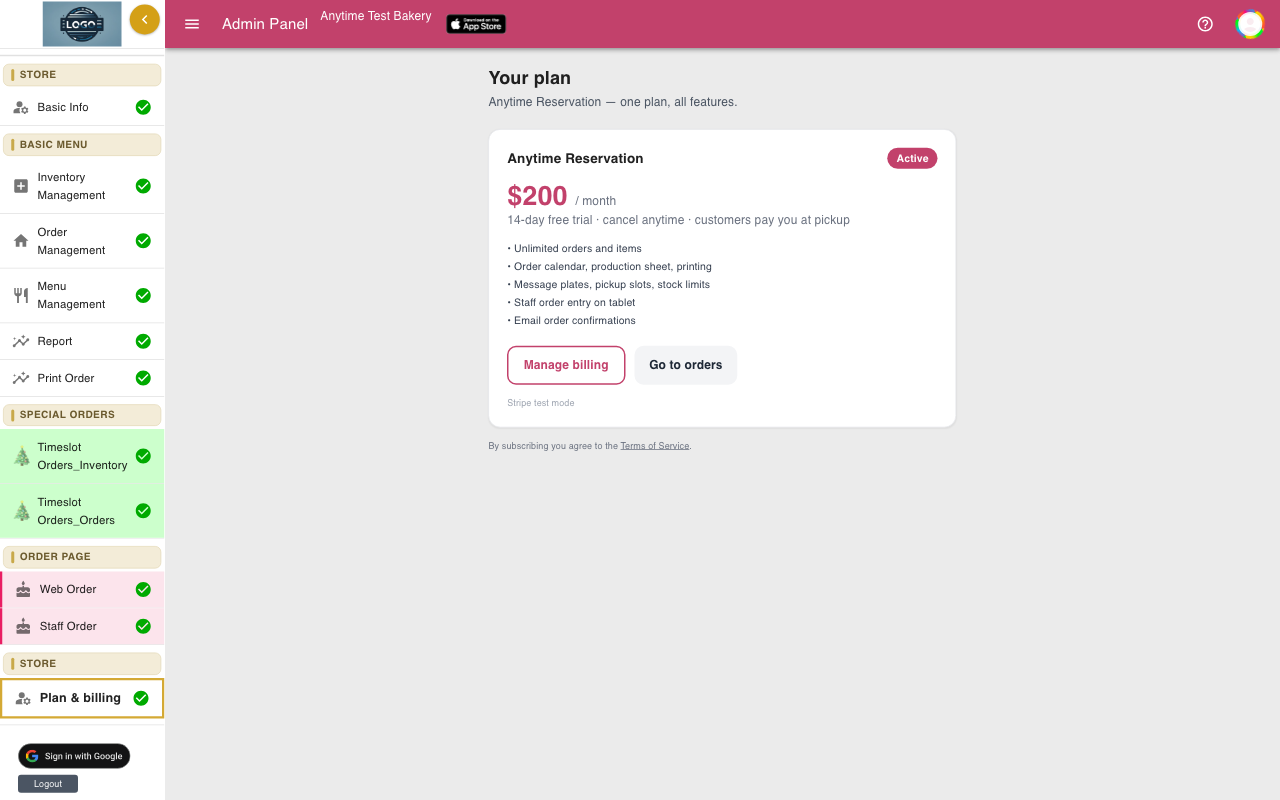
Start your 14-day free trial
Until you start the trial, the admin console only opens Plan & billing. Click Start 14-day free trial and enter your card on the secure Stripe page.
When you come back you will see Your free trial has started. Welcome aboard! and every screen opens. See Plan and billing for details.
-
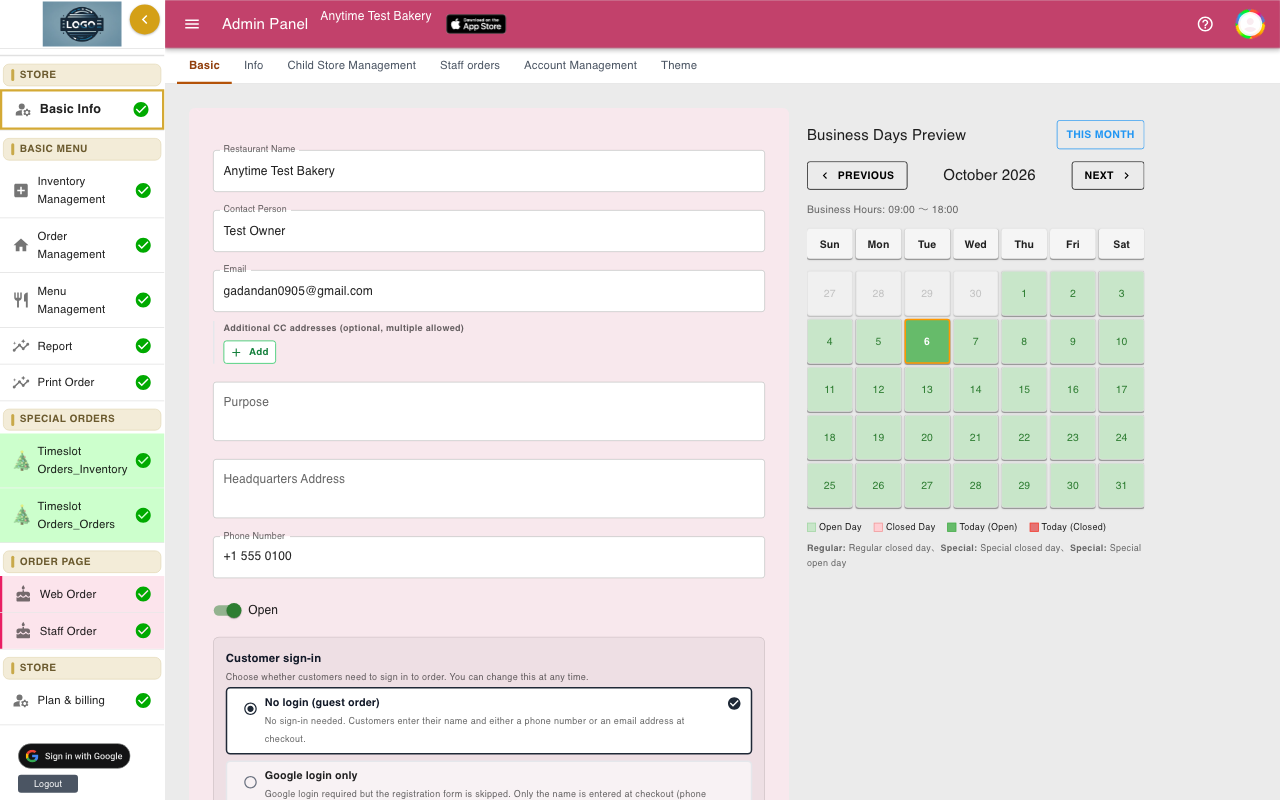
Enter your shop details
Open Basic Info in the left menu. Enter your shop name, email, phone number and logo, then click Update at the bottom.
The Shop info guide explains every field.
-
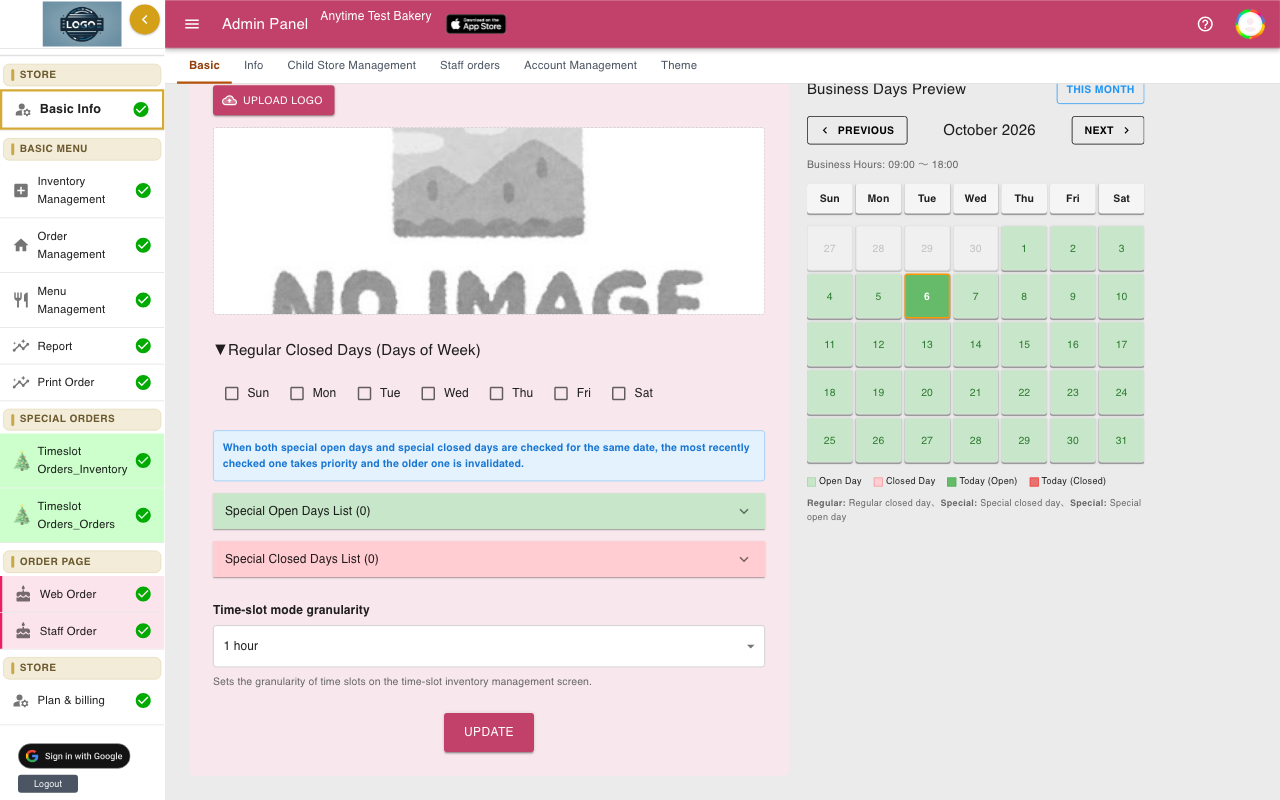
Set your pickup hours and closed days
On the same page, set Pickup Time Range, tick your Regular Closed Days, and add holidays. Click Update again.
The Business hours and closed days guide walks through it.
-
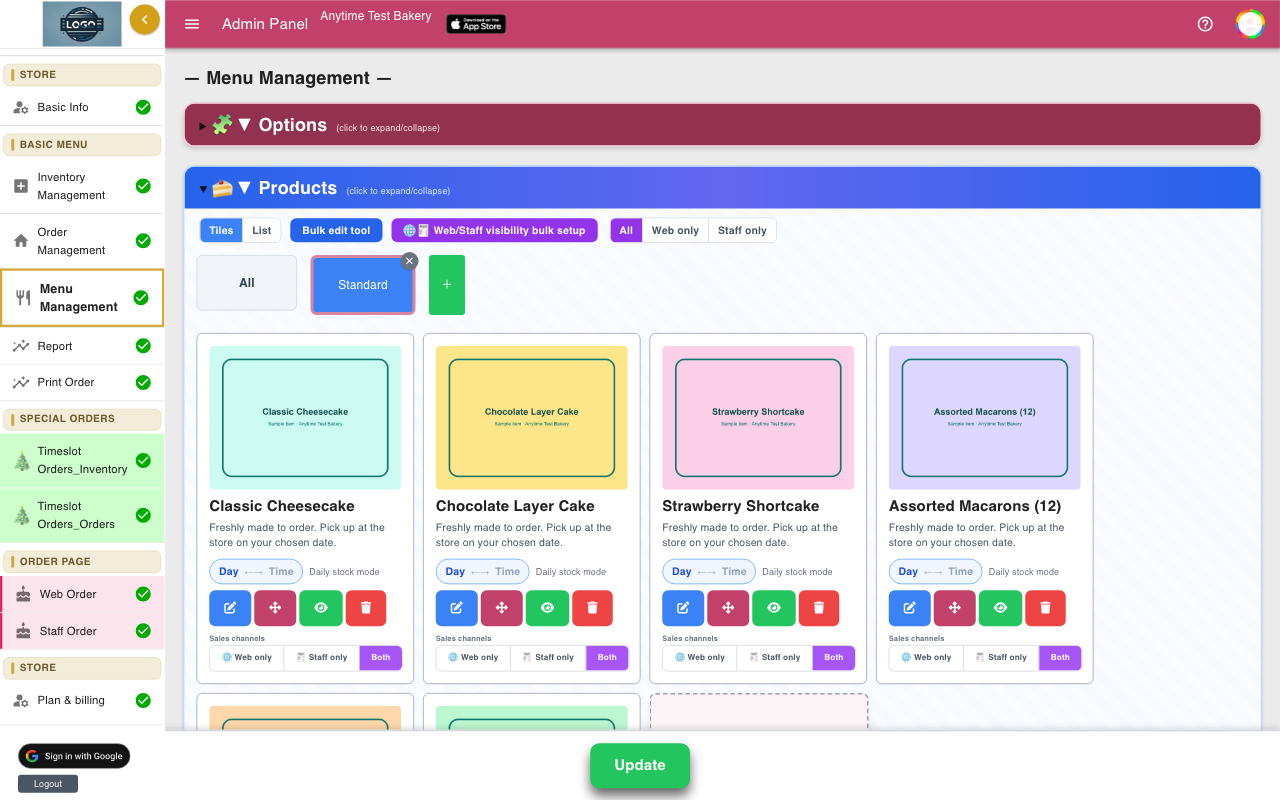
Add your products and options
Open Menu Management. Make categories, add each product with a price and photo, and add choices such as size or candles. Click Update at the bottom to save.
Follow Products, then Options and message plates.
-
Decide how much you can sell
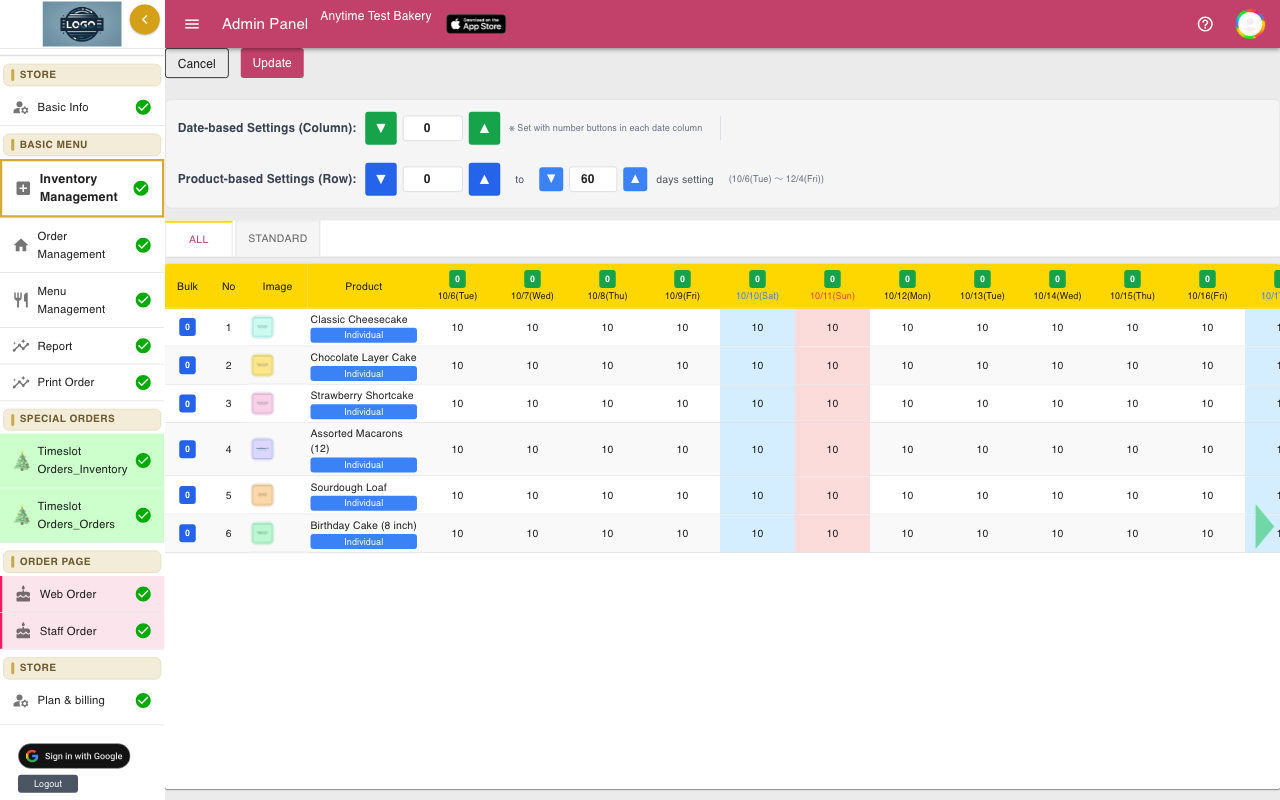
Each product has a daily stock number. Set it in Inventory Management, or turn on Unlimited Stock Orders if you never want a limit. If you want to cap orders per time slot, use time-slot stock instead.
See Inventory and stock and Pickup time slots.
-
Follow the Get started card
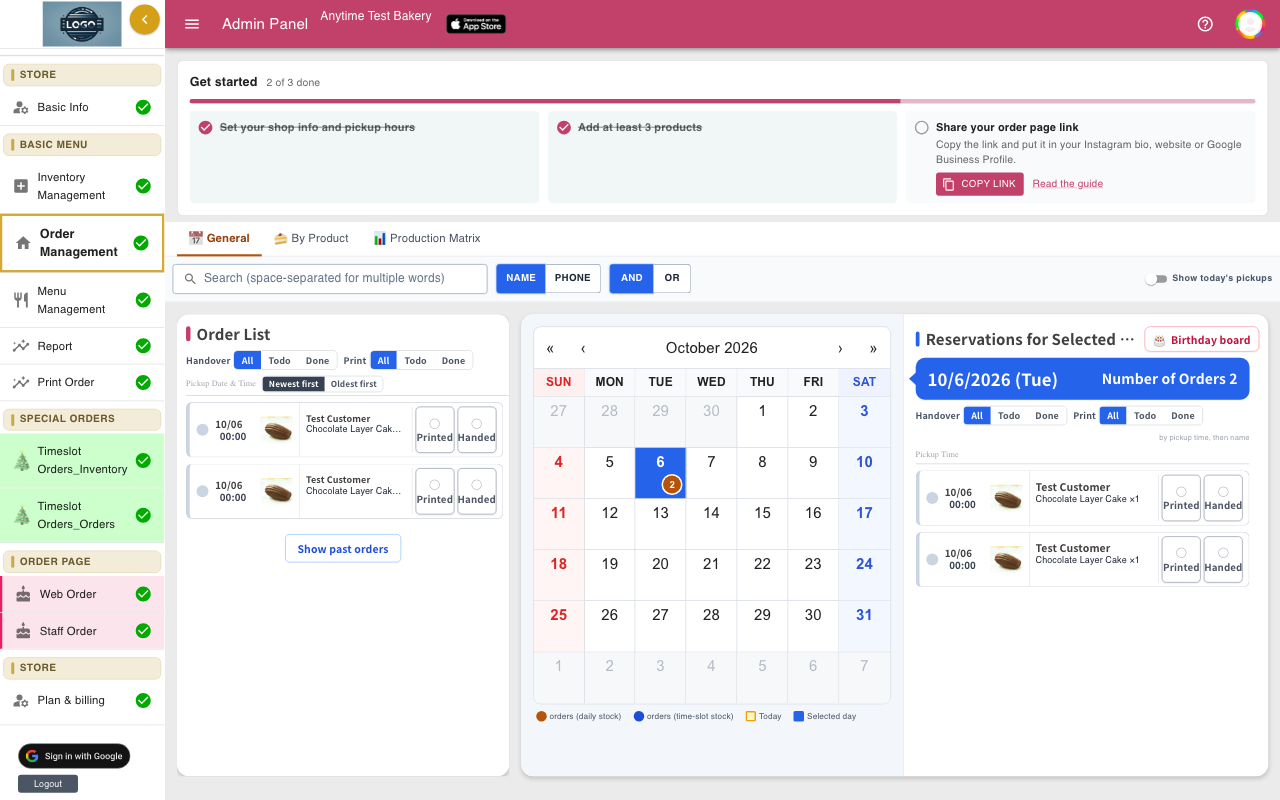
Open Order Management. The Get started card shows three steps: Set your shop info and pickup hours, Add at least 3 products, and Share your order page link. Each step has a button to the right screen and a Read the guide link.
The last step is only ticked when you click Copy link on the card itself. The card disappears when all three are done.
-
Test an order, then share your link
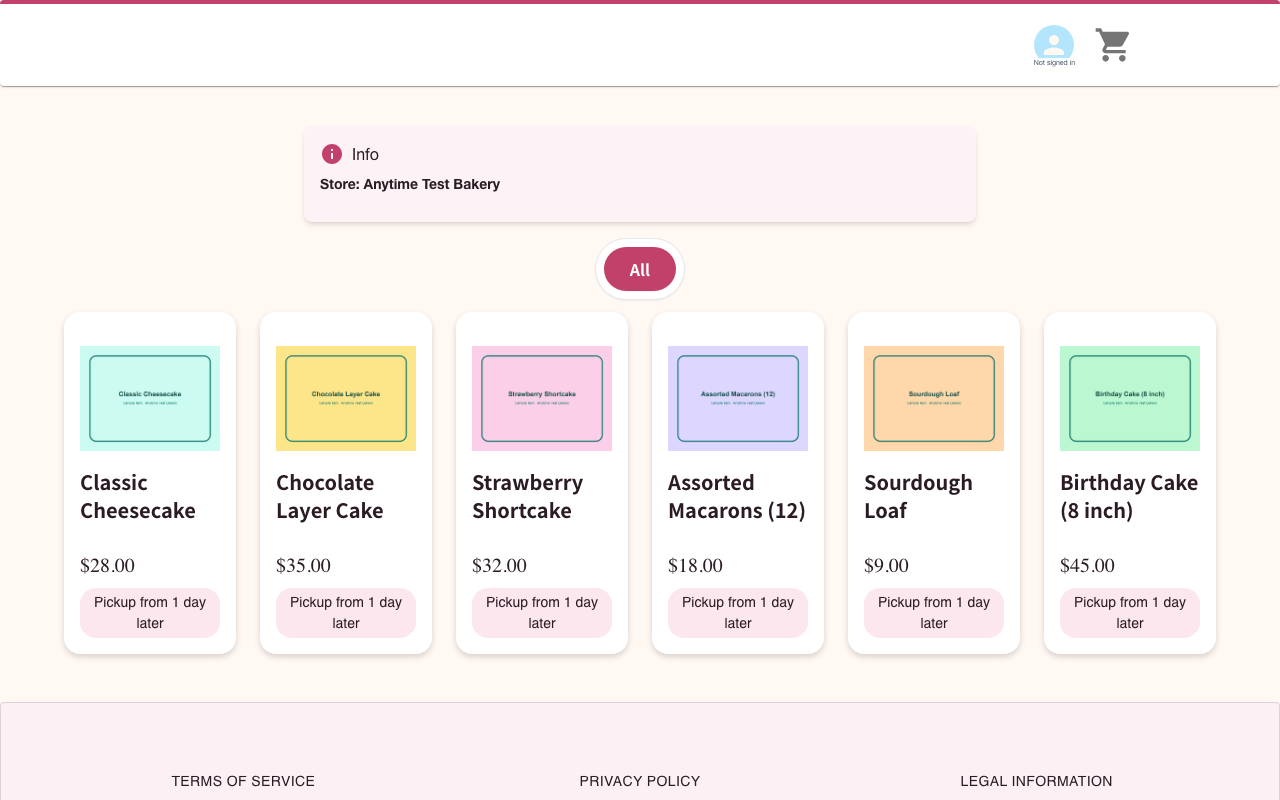
Click Web Order in the ORDER PAGE group of the left menu and place a test order yourself. Check that the dates, times and prices look right, then delete the test order in Order Management.
Now share your link. See Your order page.
-
Get help on any screen
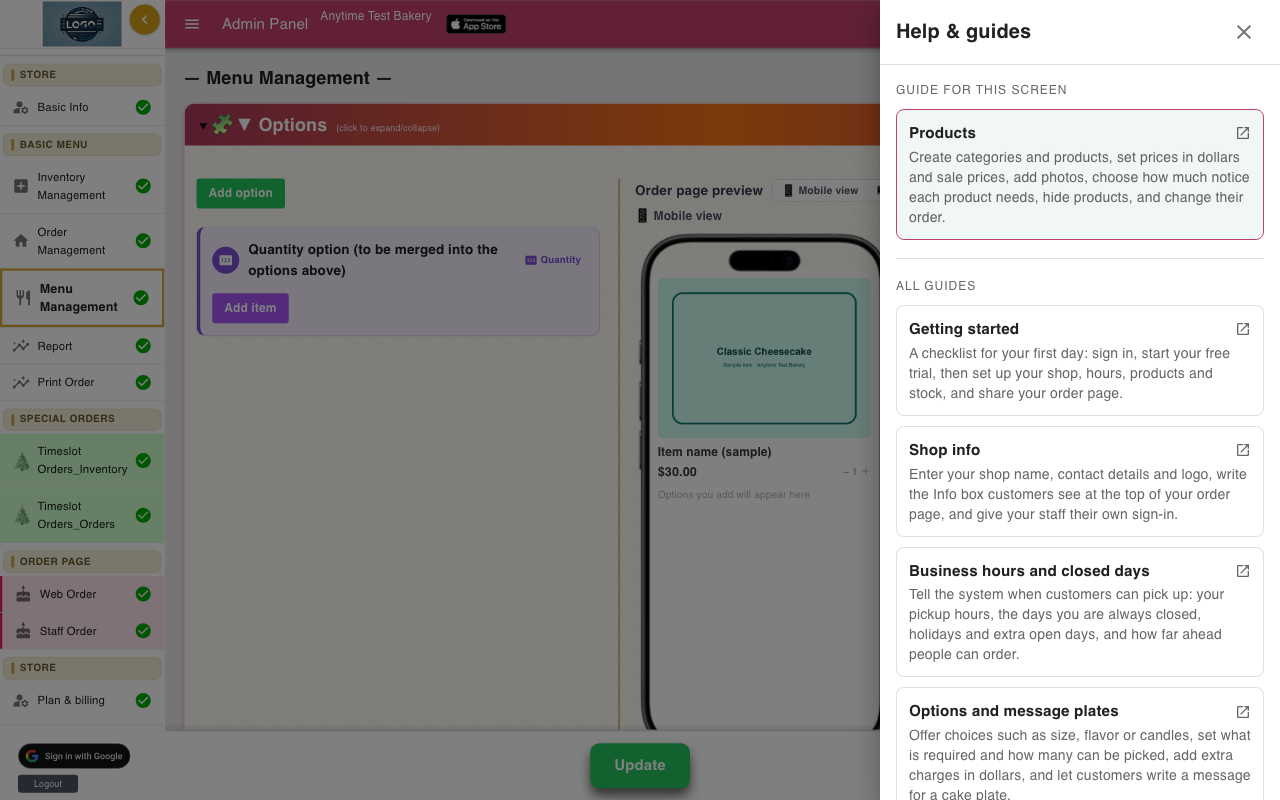
Click the ? button in the top bar at any time. A panel opens with the guide for the screen you are on at the top, followed by all the other guides. Each guide opens in a new tab so you can follow along.
Tips
- Most screens only save when you click Update at the bottom. If something you changed is gone, you probably left the page before clicking it.
- Set things up on a computer. Running the shop day to day works well on a tablet or phone.
- Deleting a test order does not put its stock back. Add the stock back in Inventory Management if you need to.
Questions
How long does setup take?
Most shops finish in an afternoon. Products take the longest, so have your photos and prices ready.
Can my staff sign in too?
Yes. In Basic Info, open the Account Management tab and add their Google address. See Shop info.
Do I need a website?
No. Your shop gets its own order page. You can link to it from Instagram, Google or an existing website.
Can I try ordering as a customer first?
Yes. Open the demo shop at anytime-reserve.web.app/order/?rest=test-store-anytime to see the full customer experience.
Related guides
Still stuck? Email us at support-global@cakesystem.net.