Before you start
- Your shop Email is filled in on Basic Info.
- Any printer your computer or tablet can already print to.
Step by step
-
Order confirmation emails
When a customer places an order, they get an order confirmation email with the pickup time, items, total and your phone and email. Your shop gets a copy at the Email address in Basic Info, and at the Google address you sign in with.
Orders entered on Staff Order only send a copy to your shop.
-
Send copies to your team
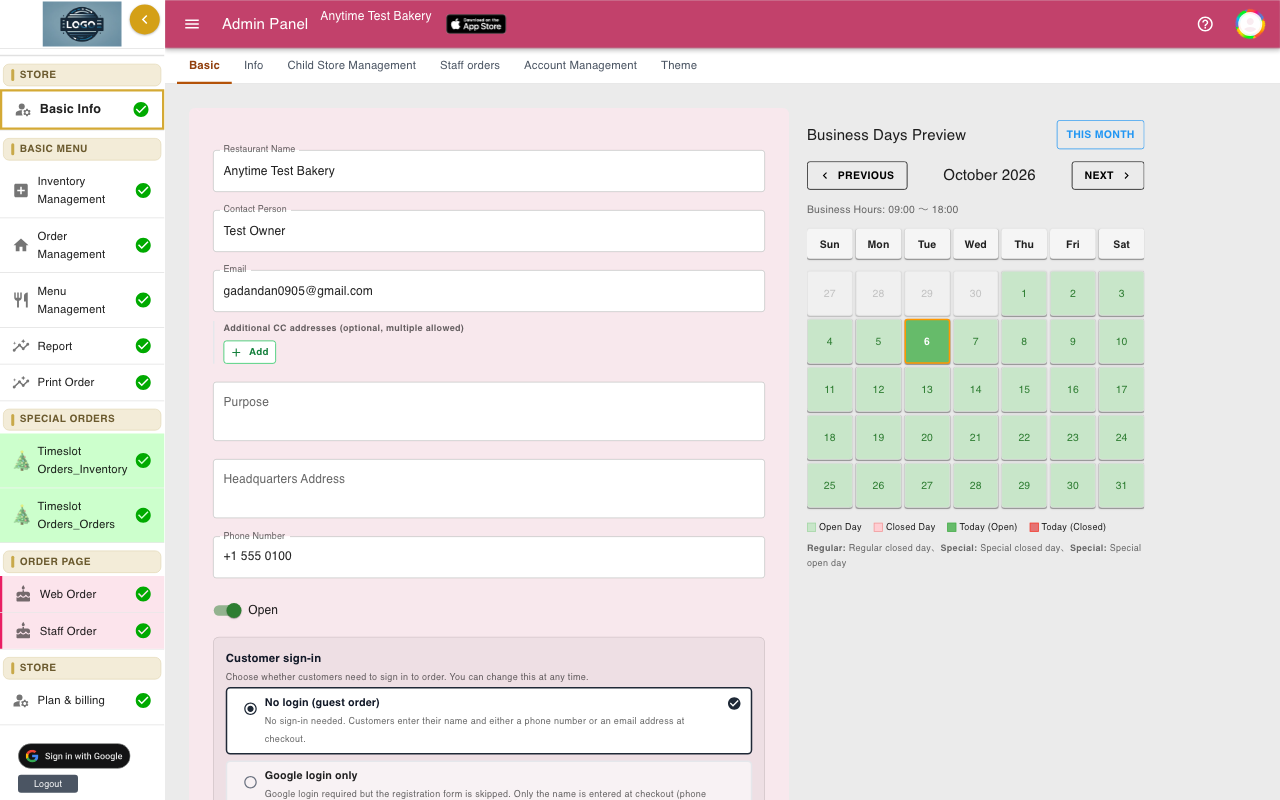
On the Basic tab of Basic Info, find Additional CC addresses (optional, multiple allowed). Click Add, type an address, and click Save. Click Update at the bottom of the page.
Everyone on the list gets a copy of each order email.
-
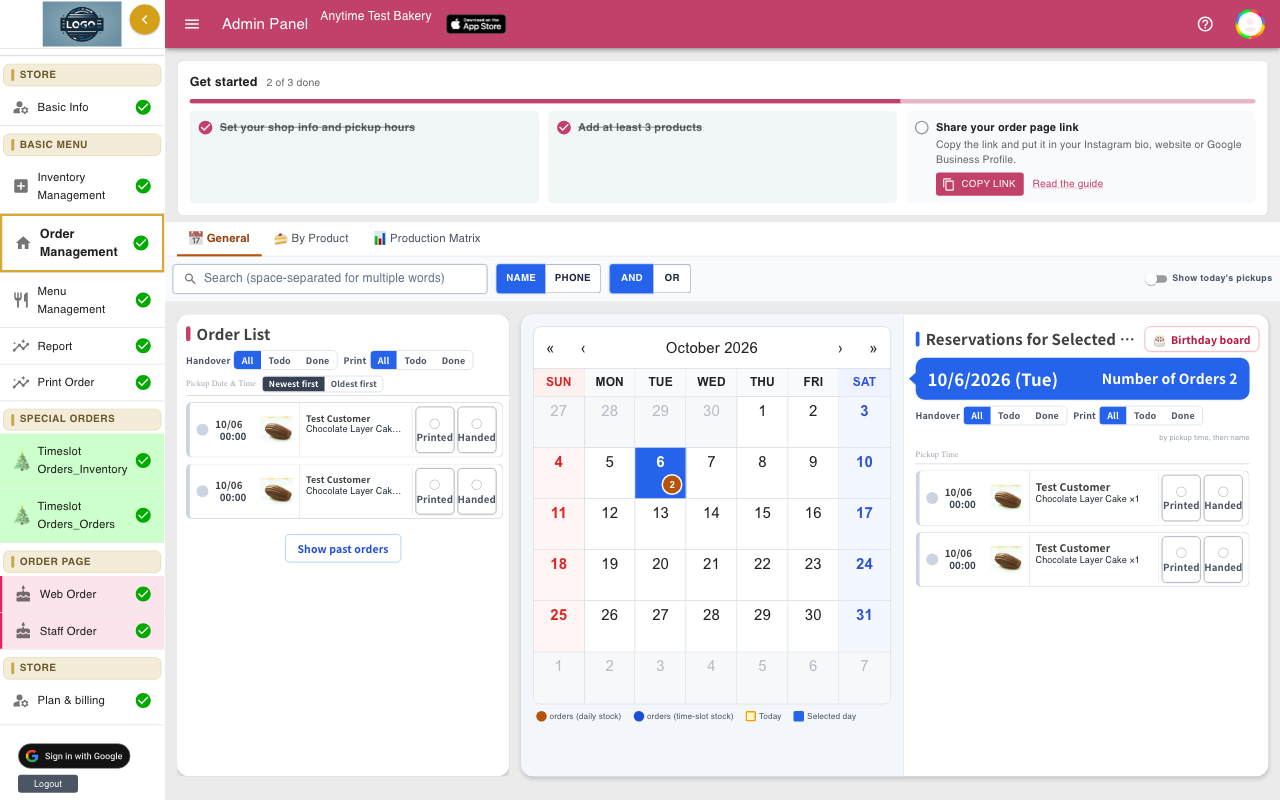
Keep Order Management open
New orders appear in Order Management on their own while it is open; there is no sound. Many shops keep it open on a tablet at the counter.
Use the Print filter set to Todo to see orders you have not printed yet.
-
Print a single order slip
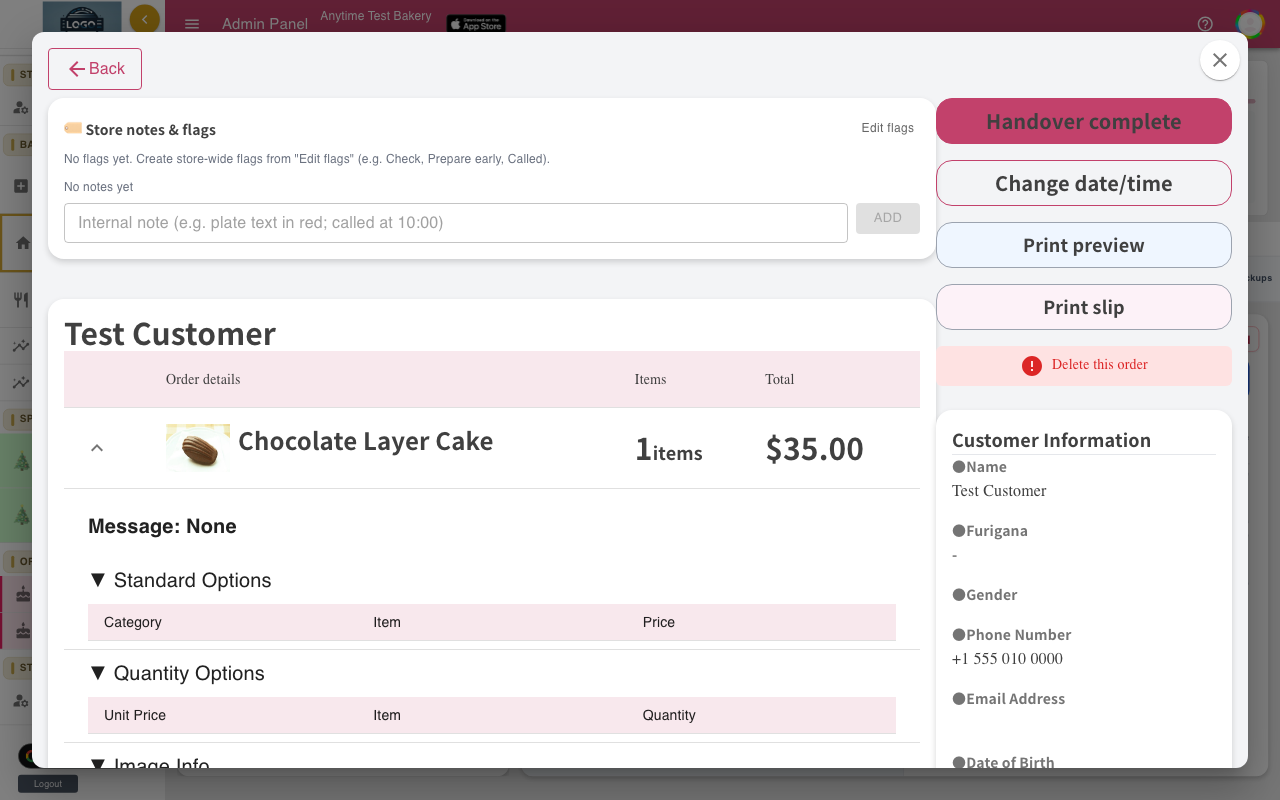
Open an order and click Print slip. In Print Receipt, choose Unpaid or Paid (it is stamped on the slip), the Number of slips and whether to show the Point card field (choose Hide if you don't use one). Then click Print.
Print preview shows a narrow receipt-style slip instead.
-
Printed orders are marked for you
When you close either print window, the order is marked Printed, even if you cancelled printing. A message with Undo appears for a few seconds.
You can also tap Printed on the order row to switch it on or off.
-
Print or download order lists
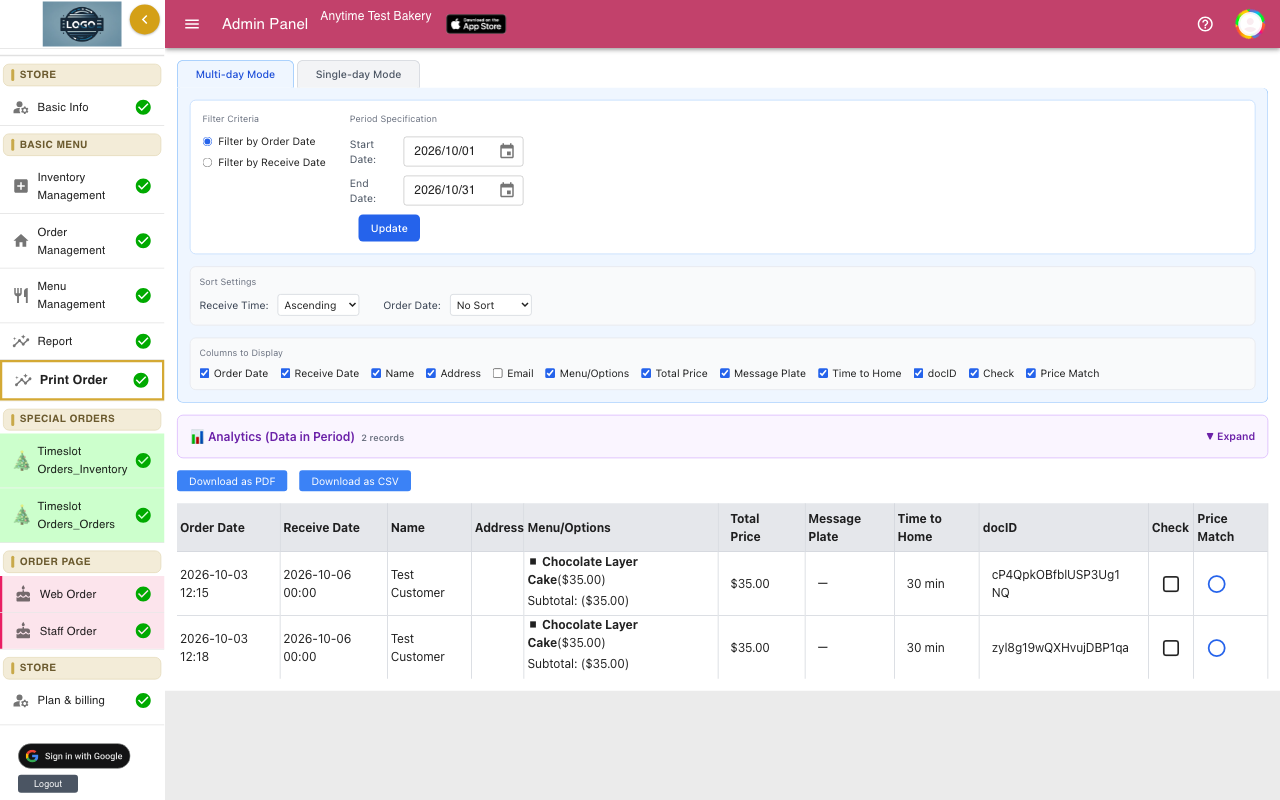
Open Print Order in the left menu and stay on Multi-day Mode. Choose Filter by Receive Date to list by pickup date, set the Start Date and End Date, and click Update.
Untick columns you don't need under Columns to Display, then click Download as PDF and print the file, or Download as CSV to open it in a spreadsheet.
Tips
- For one day's list, set the same date as Start Date and End Date in Multi-day Mode.
- The Handover complete window offers a Print option for special receipt printers. You can ignore it and click Complete.
Questions
Do I need a special printer?
No. Slips and lists print through your browser, so a regular office or home printer works.
Can I get text messages for new orders?
Not at the moment. Notifications are sent by email, and new orders show up in Order Management right away.
Is the customer emailed if I delete an order or change its time?
No. The system does not email customers about changes. Call or email them yourself.
My customer didn't get the email.
Ask them to check their spam folder and that they typed the address correctly. Guests must enter an email address; staff orders never email the customer.
Related guides
Still stuck? Email us at support-global@cakesystem.net.