Before you start
- You have orders coming in. The sheet counts every order with a pickup date in the period.
Step by step
-
Open the Production Matrix
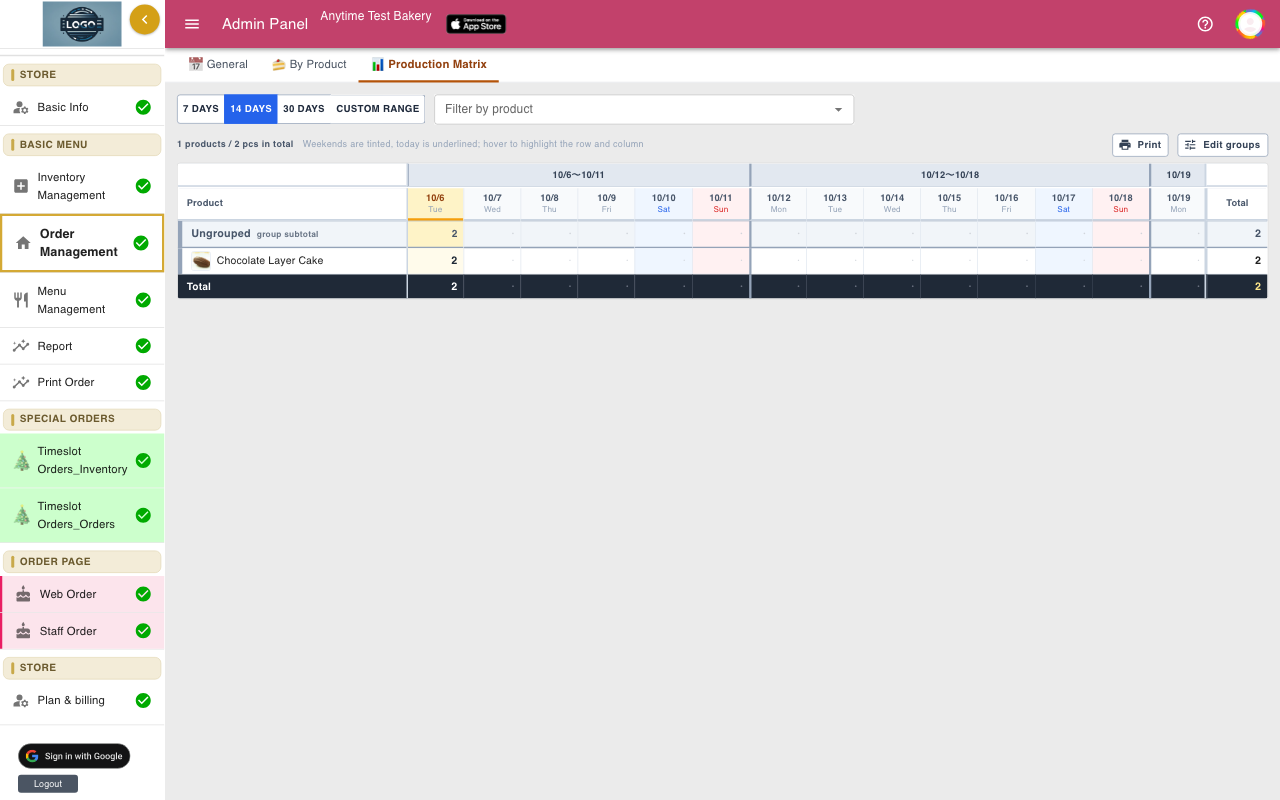
In Order Management, click the Production Matrix tab. Products are listed down the side and pickup dates across the top, with the quantity to make in each cell and totals for each row and day.
Weekends are tinted and today is underlined.
-
Choose the period
Pick 7 days, 14 days (the default) or 30 days, or set a Custom range with From and To. The summary line shows how many products and pieces are in the period in total.
-
Focus on certain products
Use Filter by product to show only the items one station makes, for example just the bread or just the cakes. Clear it to see All products again.
-
Group products by station
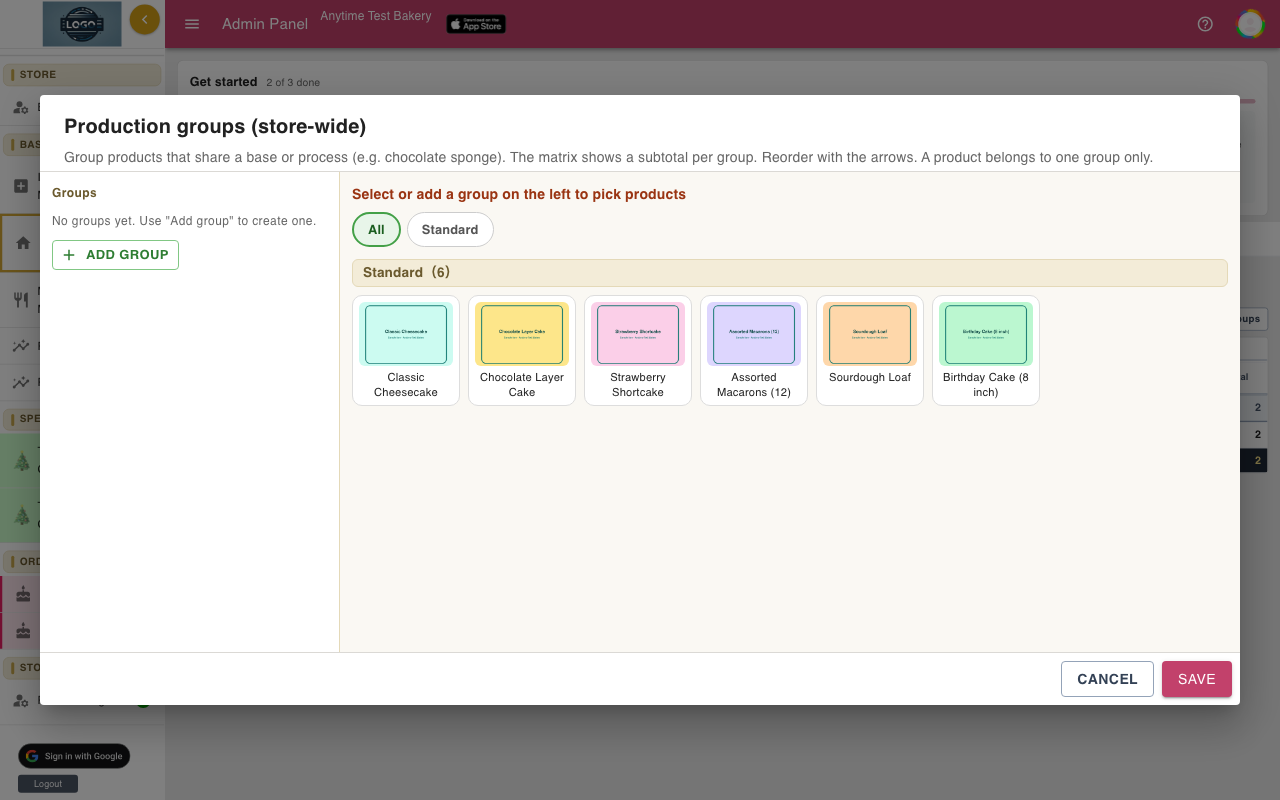
Click Edit groups, then Add group. Give it an emoji, a name such as "Chocolate sponge" or "Oven", and a color. Then click products on the right to put them in the selected group.
Click Save. Each group gets a subtotal, and products not in a group appear under Ungrouped. Groups are shared by your whole shop.
-
Print it for the kitchen
Click Print to print the sheet for the selected period and products. It prints in landscape with your shop name and the date range at the top.
-
Check totals day by day
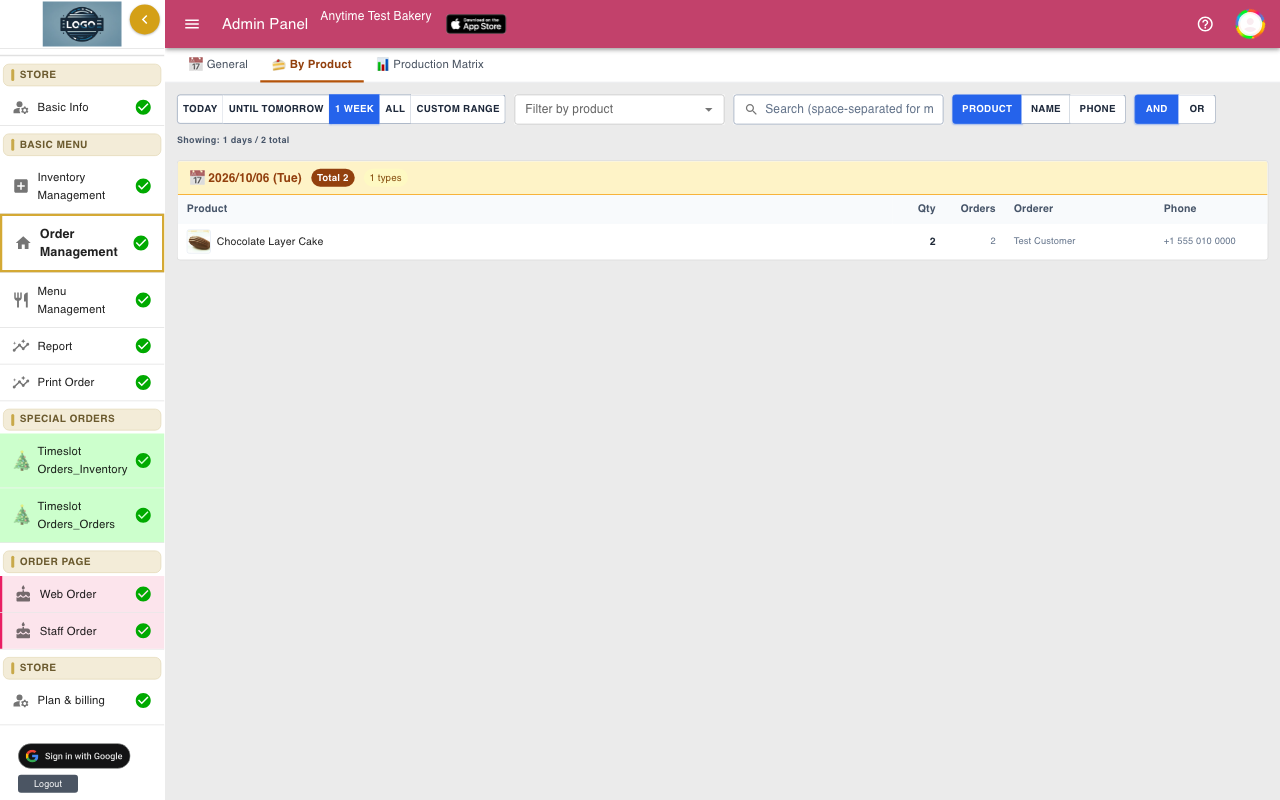
For a simple list of each day's products with the customer names, use the By Product tab.
-
Time-slot products
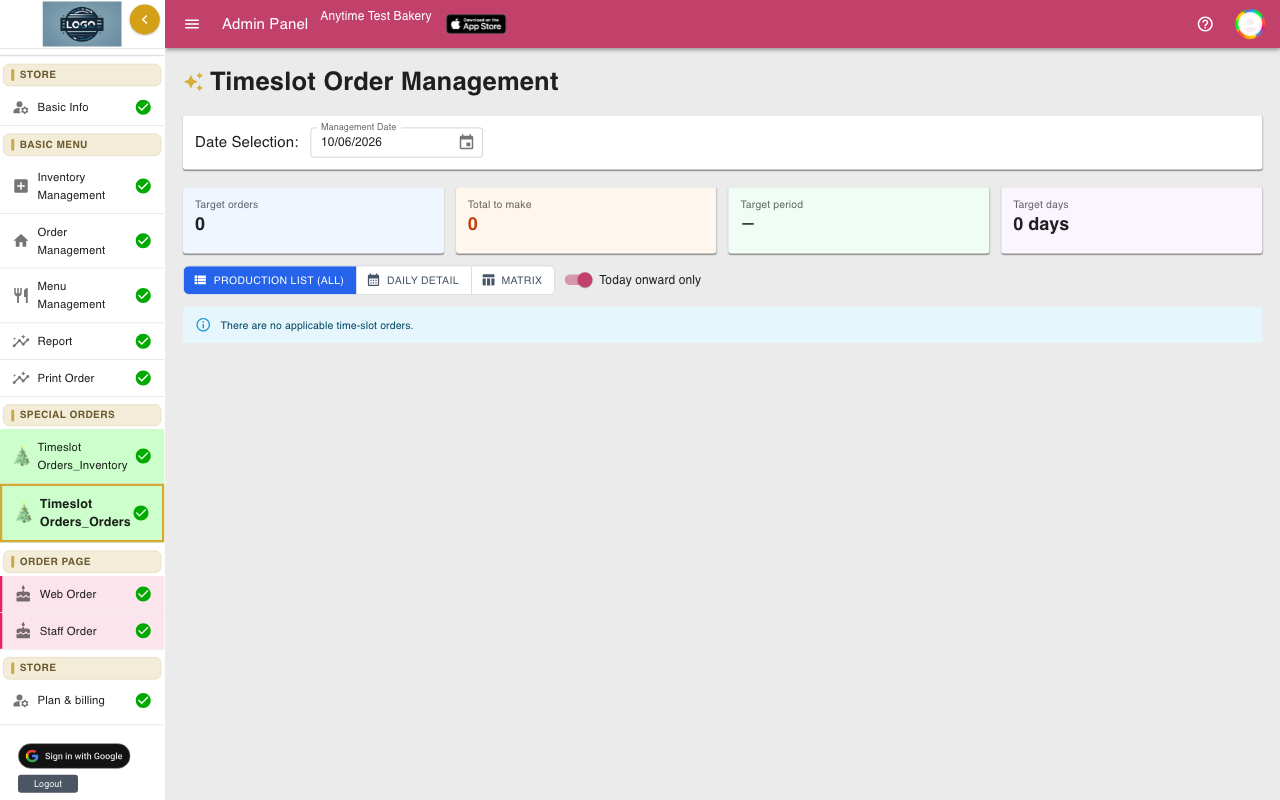
For products sold by time slot, Timeslot Orders_Orders shows what to make for each pickup time with Production list (all), and also has a Matrix view.
Tips
- Group products that share a base, such as one sponge for three cakes, so the subtotal tells you how many bases to bake.
- Print the 7-day view on Monday for ordering ingredients, and the 1-day view each morning.
Questions
Can a product be in two groups?
No. Each product belongs to one group at a time, which keeps the totals correct.
Do picked-up orders still count?
Yes. The sheet counts every order in the period, whether or not it has been handed over. Deleted orders are not counted.
A product I no longer sell has old orders. Can I group it?
Yes. In Edit groups, the Not in menu (past orders) tab lists products that only appear in past orders.
Related guides
Still stuck? Email us at support-global@cakesystem.net.