Before you start
- Your Pickup Time Range is set in Basic Info. Slots run from its start to its end. See Business hours and closed days.
- Decide how long each slot should be, for example 30 minutes or 1 hour.
Step by step
-
Switch the product to time slots
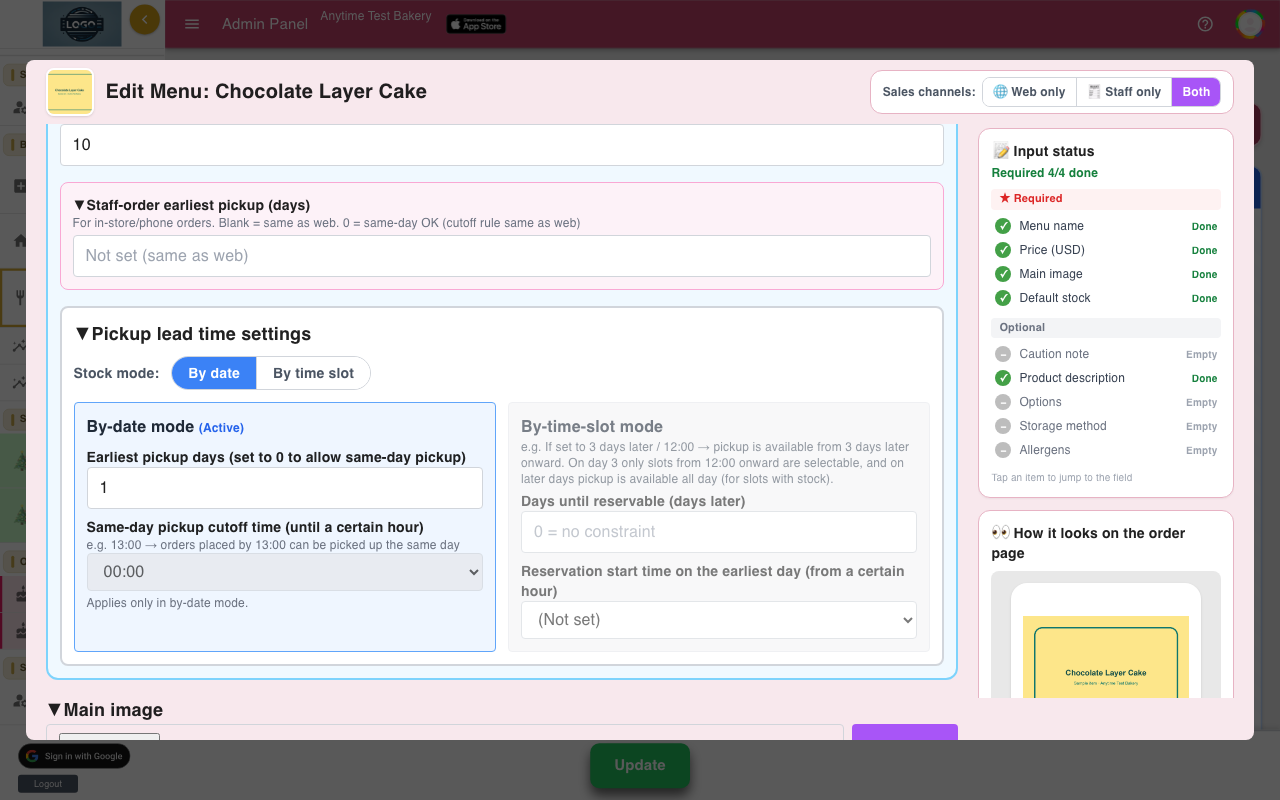
In Menu Management, open the product and set Stock mode under Pickup lead time settings to By time slot. You can also click the Day ←→ Time switch on the product card.
Only products in this mode use time slots. Other products keep using daily stock.
-
Set how early it can be booked
In the By-time-slot mode panel, enter Days until reservable (days later), for example 3. Optionally choose a Reservation start time on the earliest day, for example 12:00, so that on the earliest day only slots from noon can be booked.
Click Save in the product window, then Update at the bottom of the page.
-
Open the time-slot stock screen
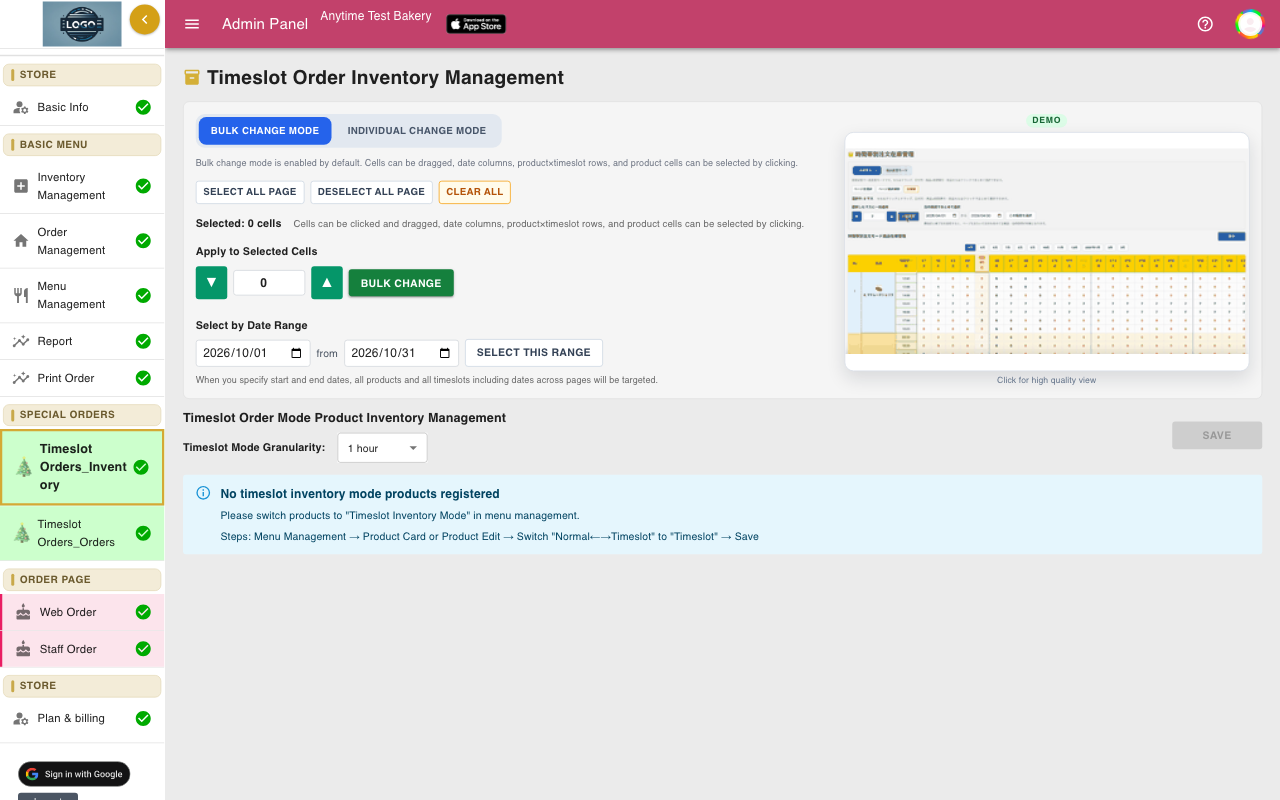
Click Timeslot Orders_Inventory in the SPECIAL ORDERS group of the left menu. The grid shows your time-slot products, one row per slot, with one column per day. Use the month buttons to move around.
If you see No timeslot inventory mode products registered, go back to step 1.
-
Choose the slot length
Use Timeslot Mode Granularity to choose how long each slot is, from 10 minutes up to 12 hours. This saves straight away and you will see Timeslot granularity updated.
Reload the page if the grid does not change. Slots run from the start to the end of your pickup hours.
-
Fill in how many each slot can take
Every slot starts at 0, so nothing can be booked until you fill the grid. In Bulk Change Mode, select cells by dragging, by clicking a date, a slot time or a product name, or with Select by Date Range. Enter a number under Apply to Selected Cells and click Bulk Change.
Use Individual Change Mode to edit single cells.
-
Save
Click Save. You will see Timeslot inventory saved.
The number in each cell is how many more can be ordered for that slot. It goes down with every order.
-
What customers see
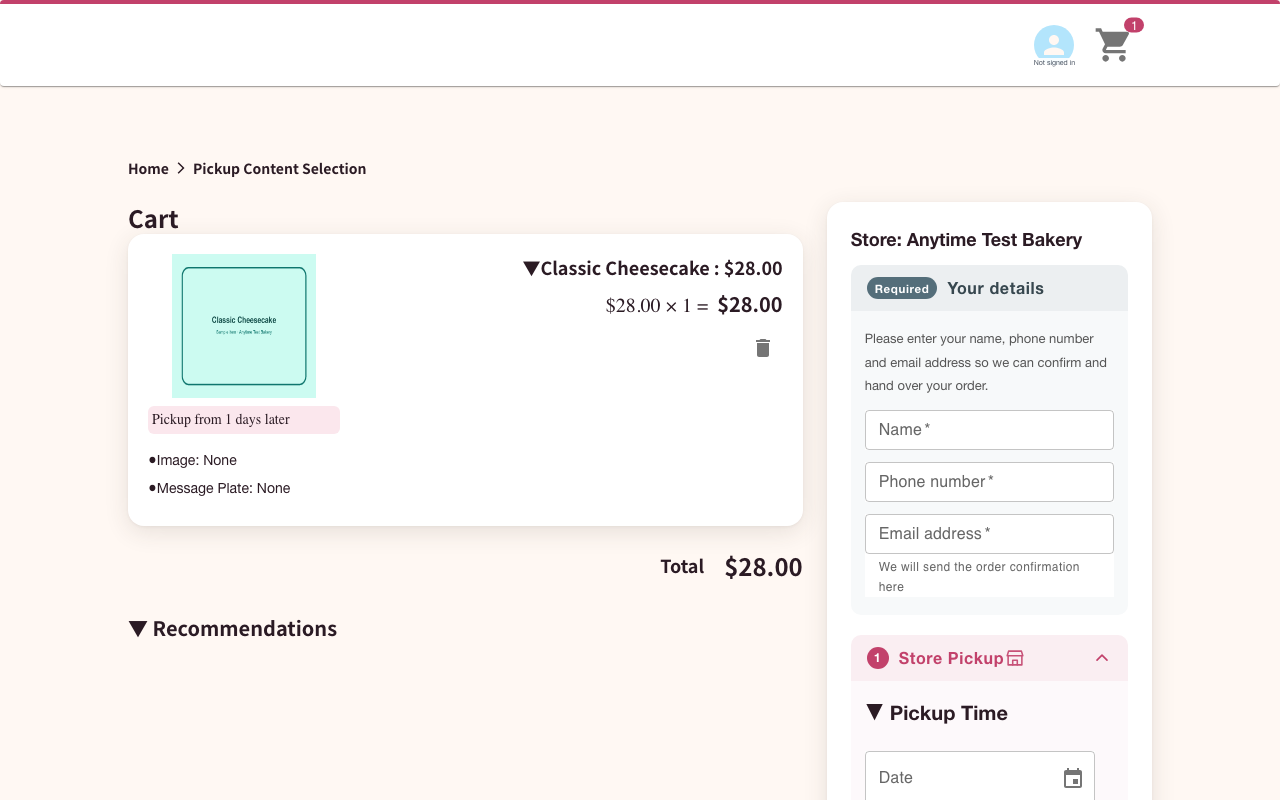
When the cart has a time-slot product, checkout shows a weekly grid instead of a calendar, with ←Prev week and Next week→. Open slots show a circle with the number left; full slots show −.
On your order page, the product card shows its Earliest pickup date and time, or No pickup slots if nothing is open in the next 60 days.
-
See orders by slot
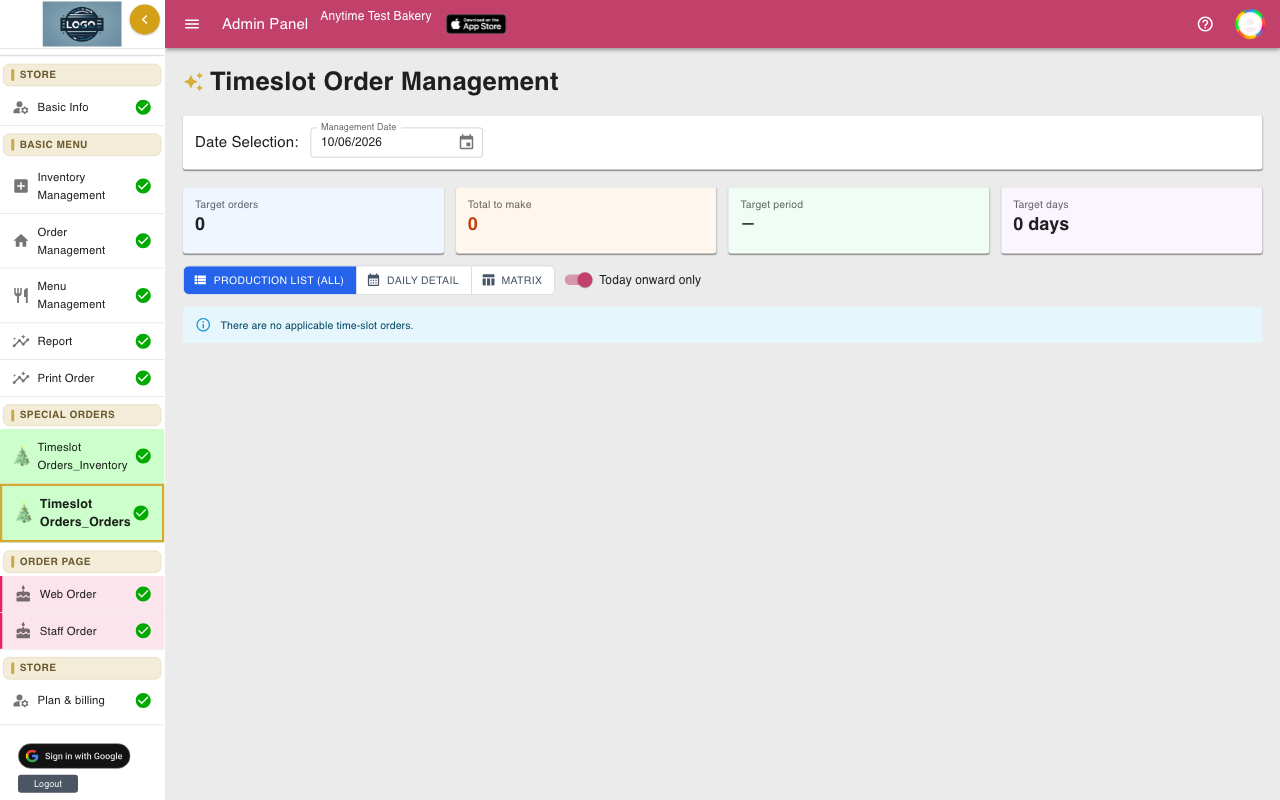
Open Timeslot Orders_Orders and pick a Management Date. Choose Production list (all) for what to make at each pickup time, Daily detail for each customer, or Matrix for a day-by-day table.
This screen only shows time-slot products. All orders are also in Order Management.
Tips
- Fill in slots several weeks ahead with Select by Date Range, so customers planning ahead are not turned away.
- If a product shows No pickup slots on your order page, its slots are still at 0. Fill them in and click Save.
- A cart with any time-slot product uses the slot grid for the whole order, so the slot must also have room for the other items' daily stock.
Questions
Can I limit the total number of orders per slot for all products together?
No. Each product has its own number per slot.
Does Unlimited Stock Orders remove slot limits?
No. It only applies to daily stock. Time-slot products always use the numbers in the grid.
Why do the menu items have a Christmas tree icon?
Time slots were first built for the Christmas rush. They work for any day of the year.
Related guides
Still stuck? Email us at support-global@cakesystem.net.