Before you start
- Your products are set up in Menu Management.
- You know roughly how many of each product you can make per day.
Step by step
-
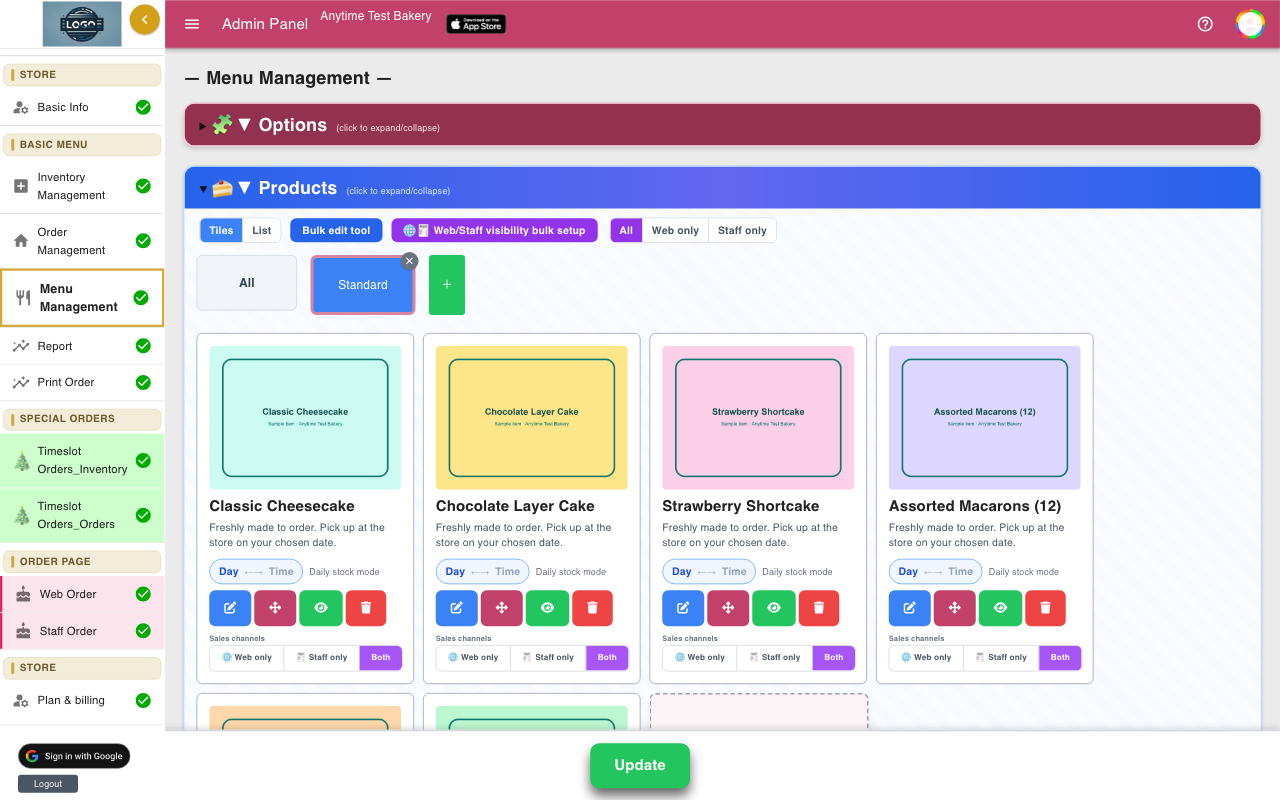
Choose: daily stock, time-slot stock, or no limit
Daily stock limits how many of a product can be picked up on each day. It is the default for every product.
Time-slot stock limits each pickup time, for example 4 cakes at 10:00. See Pickup time slots. If you never want limits on daily products, turn on Unlimited Stock Orders (step 7).
-
Set a default for each product
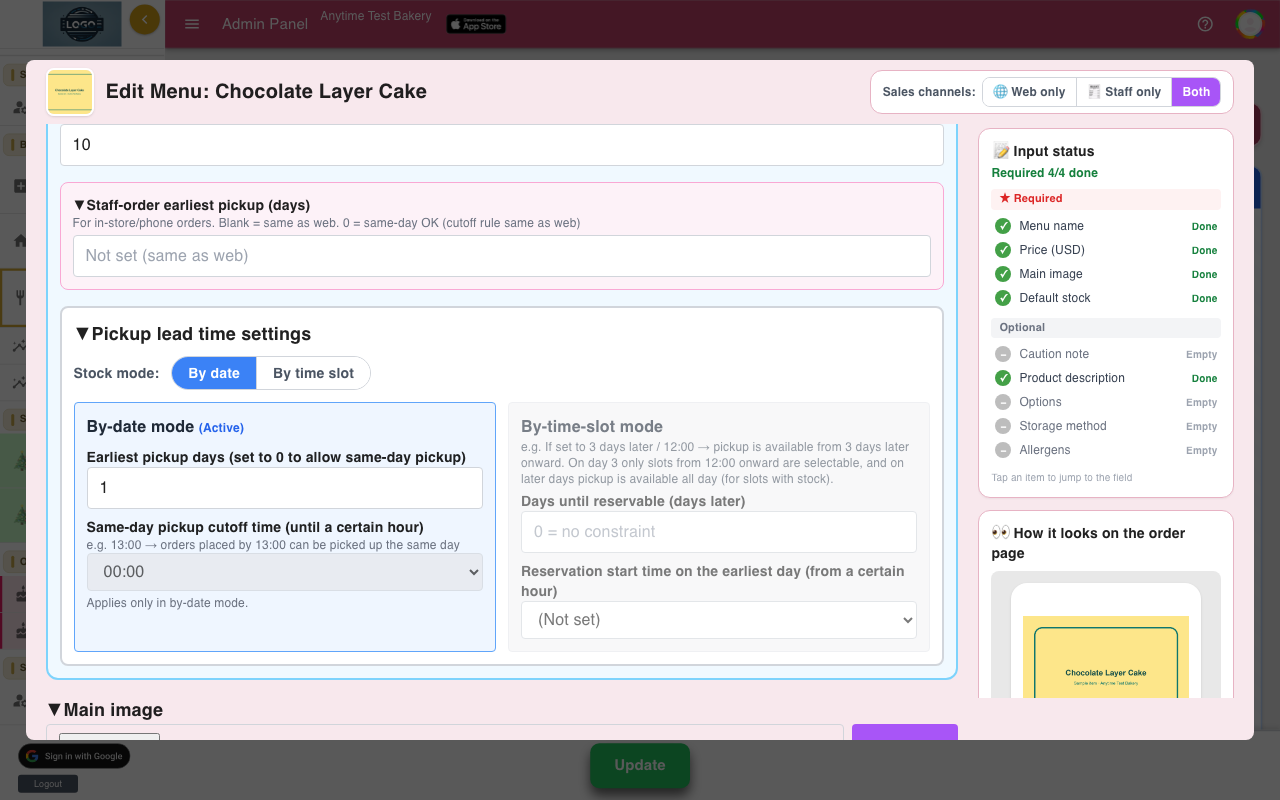
Open the product in Menu Management and enter Default stock. This number is used for every day you have not set separately. New products start at 30.
Click Save, then Update.
-
Open Inventory Management
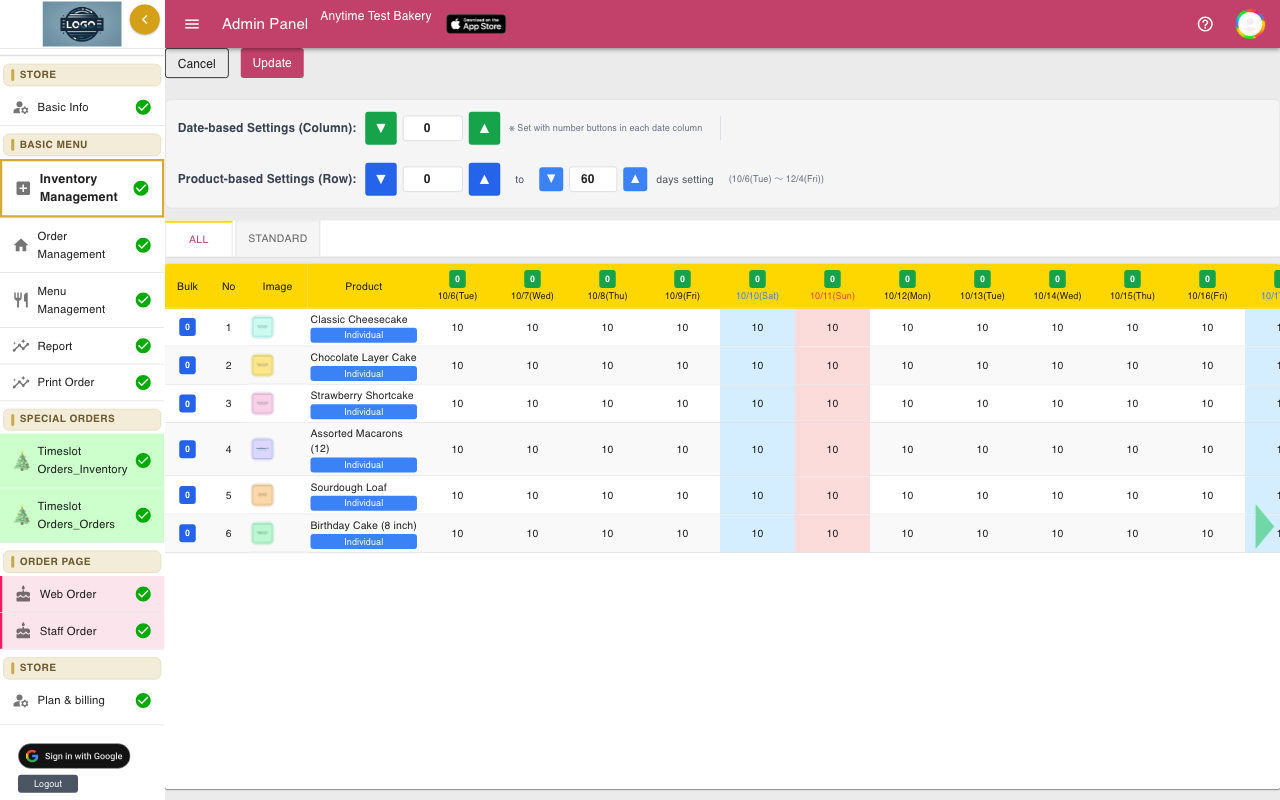
Click Inventory Management in the left menu. Each row is a product and each column is a day, 15 days per page. Use the page numbers at the bottom to see further ahead.
The number in each cell is how many more can still be ordered for that day.
-
Change a single day
Click a cell, type the new number, and click outside it. For example, set 20 on a busy Saturday or 0 on a day you cannot make that product.
Changes are not saved until you click Update at the top or bottom of the page. You will see Successfully updated.
-
Change many days at once
To set one day for every product, enter a number next to Date-based Settings (Column), then click the green number button above that day. To set one product for many days, enter a number and a number of days next to Product-based Settings (Row), then click the blue button in that product's Bulk column.
The day button changes every product in every tab, not just the tab you are looking at. Click Update when you are done.
-
Use the Individual window
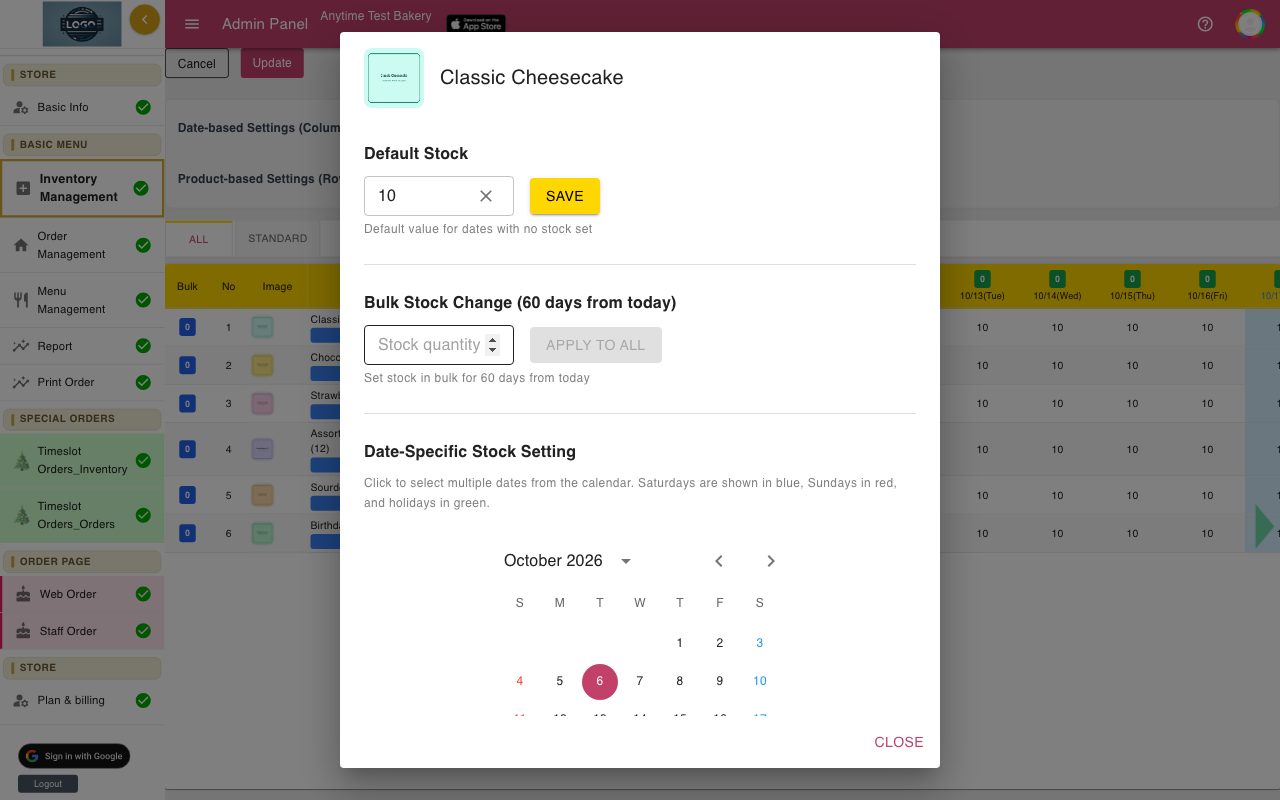
Click Individual under a product name. Here you can change Default Stock and click Save, set the next 60 days with Bulk Stock Change and Apply to All, or tick days on the calendar and use Apply to Selected Dates.
These buttons only fill in the grid. Click Close, then Update to save.
-
Or turn off limits completely
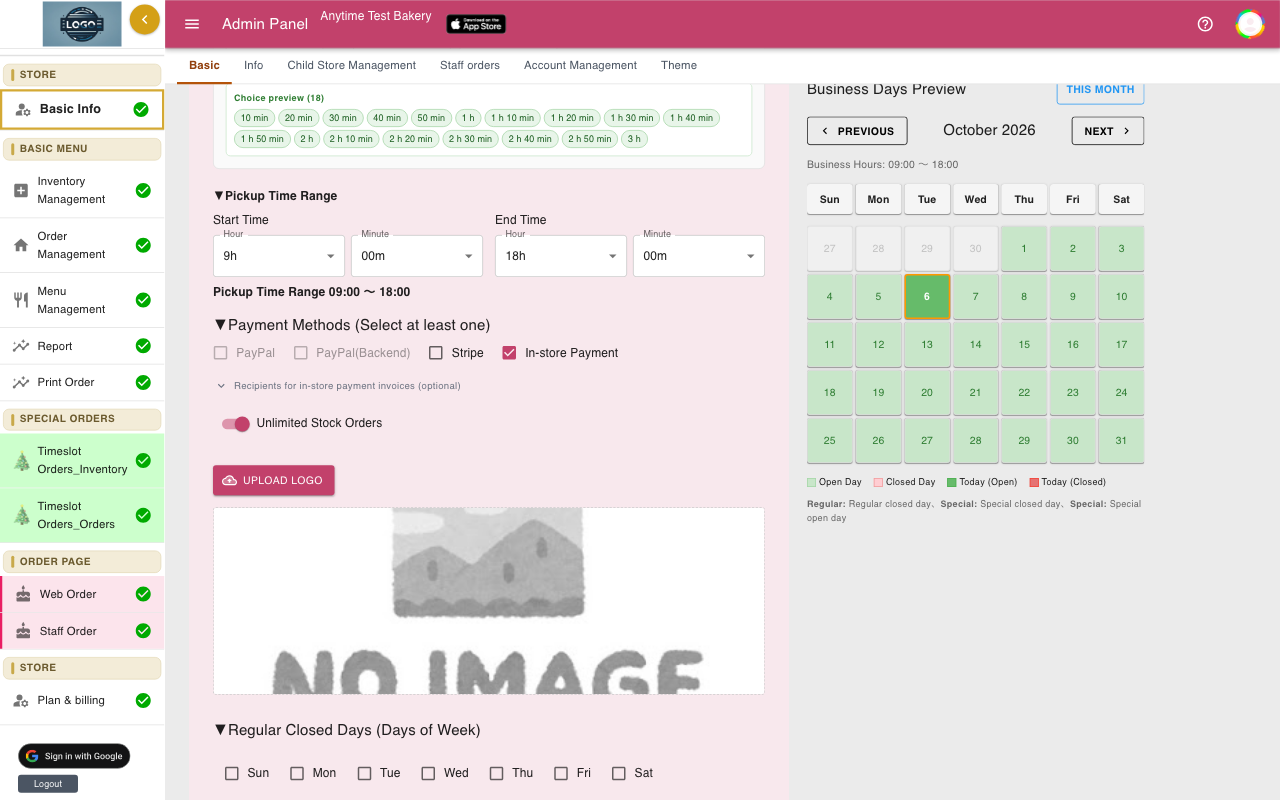
Open Basic Info, turn on Unlimited Stock Orders, and click Update. Daily stock is then no longer checked or reduced.
This does not affect time-slot products. They always use their slot numbers.
-
How stock goes down
Every order takes its quantity off the stock for its pickup day (or time slot) the moment it is placed. Orders from your Staff Order screen count too.
Deleting an order or changing its pickup date does not change stock. Add the quantity back in Inventory Management yourself.
-
What customers see when you are full
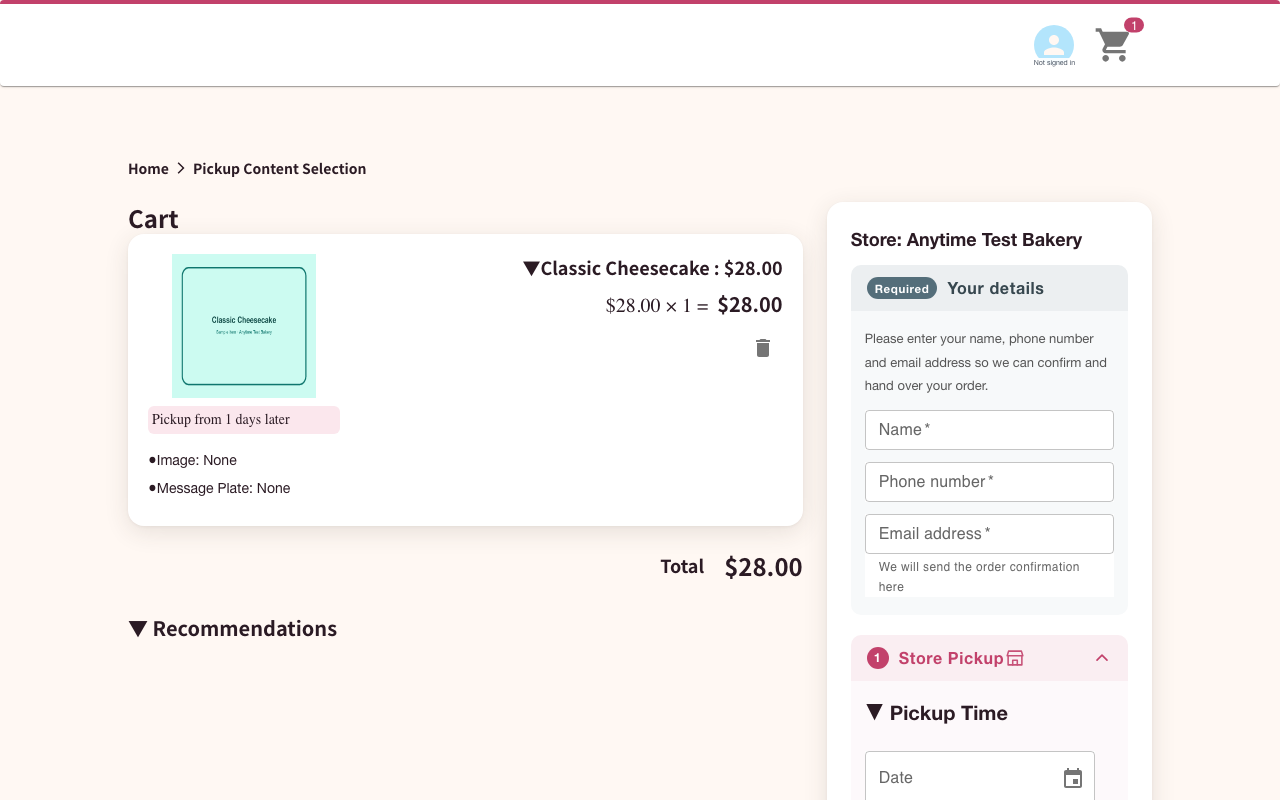
For daily stock, the calendar does not mark full days. When the customer taps Pay at Store, the order stops with a message that stock for that product is insufficient, and they choose another day.
For time-slot products, the pickup grid shows how many are left in each slot and a − where nothing is left.
Tips
- Set 0 on days you cannot make a product, rather than hiding the product. Customers can still order it for other days.
- Leave Inventory Management open only while you edit it. If an order arrives before you click Update, reload the page and make your change again.
- To stop selling a product for a while, hide it with the eye button in Menu Management.
Questions
A customer cancelled. How do I give the stock back?
Delete the order in Order Management, then add the quantity back to that day in Inventory Management and click Update.
Does the product show as sold out on my order page?
No. Products stay visible. Customers find out when they try to place an order for a full day, and can choose another day.
Why is a time-slot product listed here too?
Every product is listed, but the numbers here only apply to daily products. Time-slot products use Timeslot Orders_Inventory.
How far ahead can I set stock?
About four months: 8 pages of 15 days. Days you have not set use Default stock.
Related guides
Still stuck? Email us at support-global@cakesystem.net.