Before you start
- Your shop info, hours and at least a few products are set up.
- The Open switch in Basic Info is on.
Step by step
-
Open your order page
Click Web Order in the ORDER PAGE group of the left menu. Your order page opens in a new tab. Its address looks like anytime-reserve.web.app/order/?rest= followed by your shop ID.
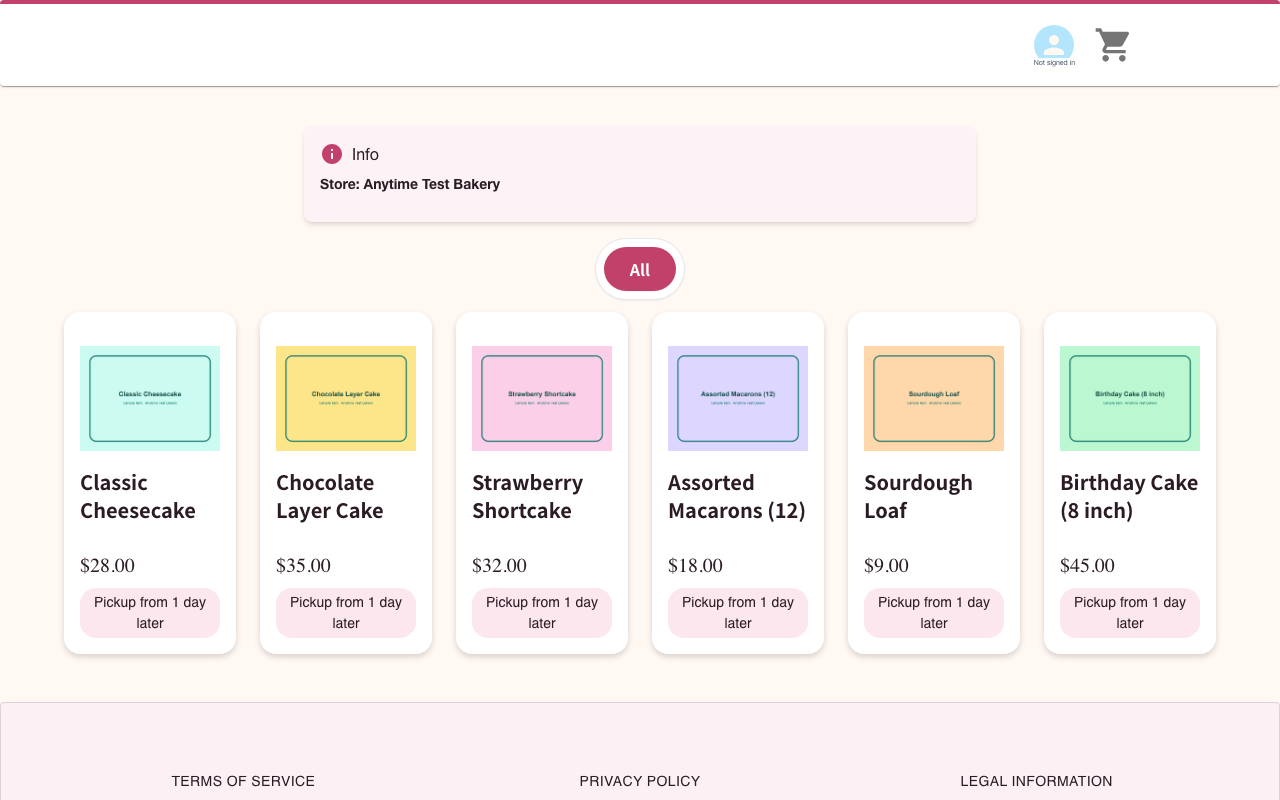
The page shows your Info box, your category tabs, and your products with prices and how many days ahead they can be picked up.
-
Copy the link and share it
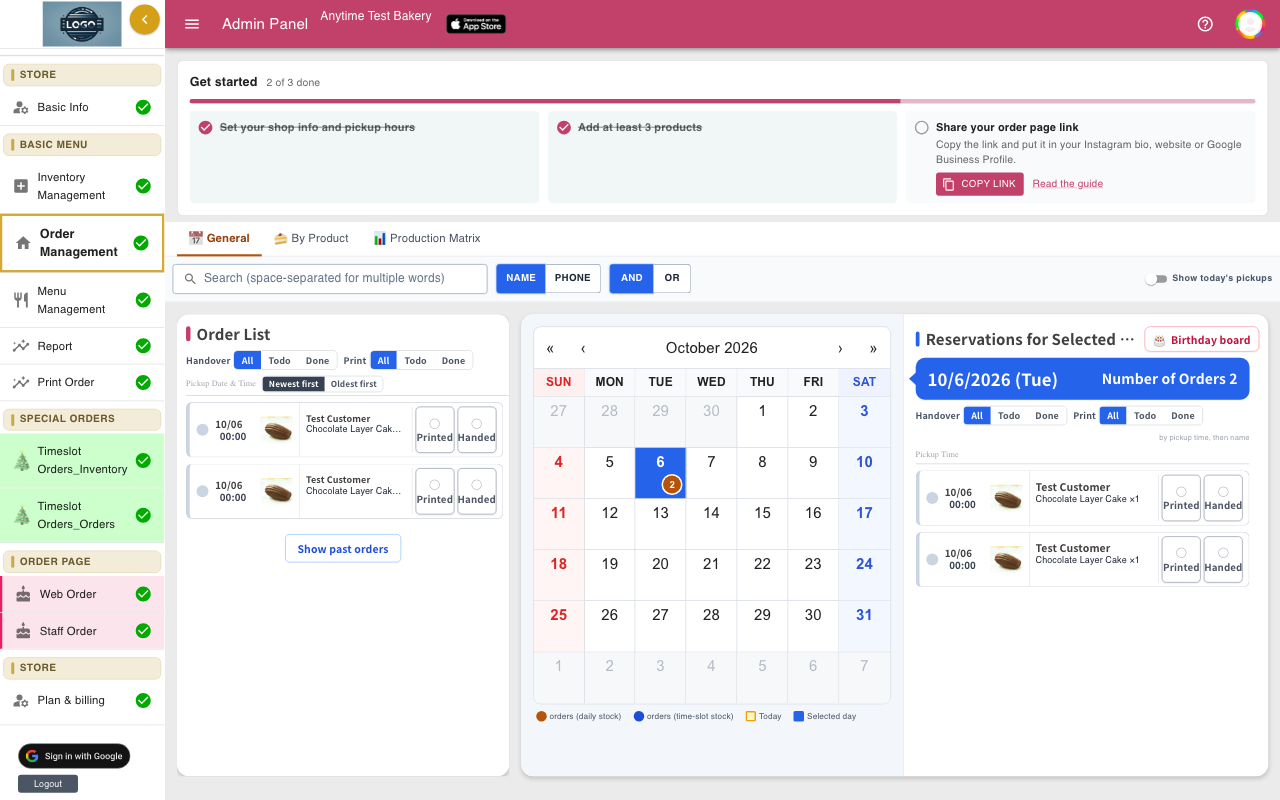
On Order Management, the Get started card has a Copy link button. You can also copy the address from the Web Order tab.
Put the link where your customers already look: your Instagram bio, your website, your Google Business Profile, or a sign at the counter. For a printed QR code, paste the link into any QR code maker.
-
Choose whether customers sign in
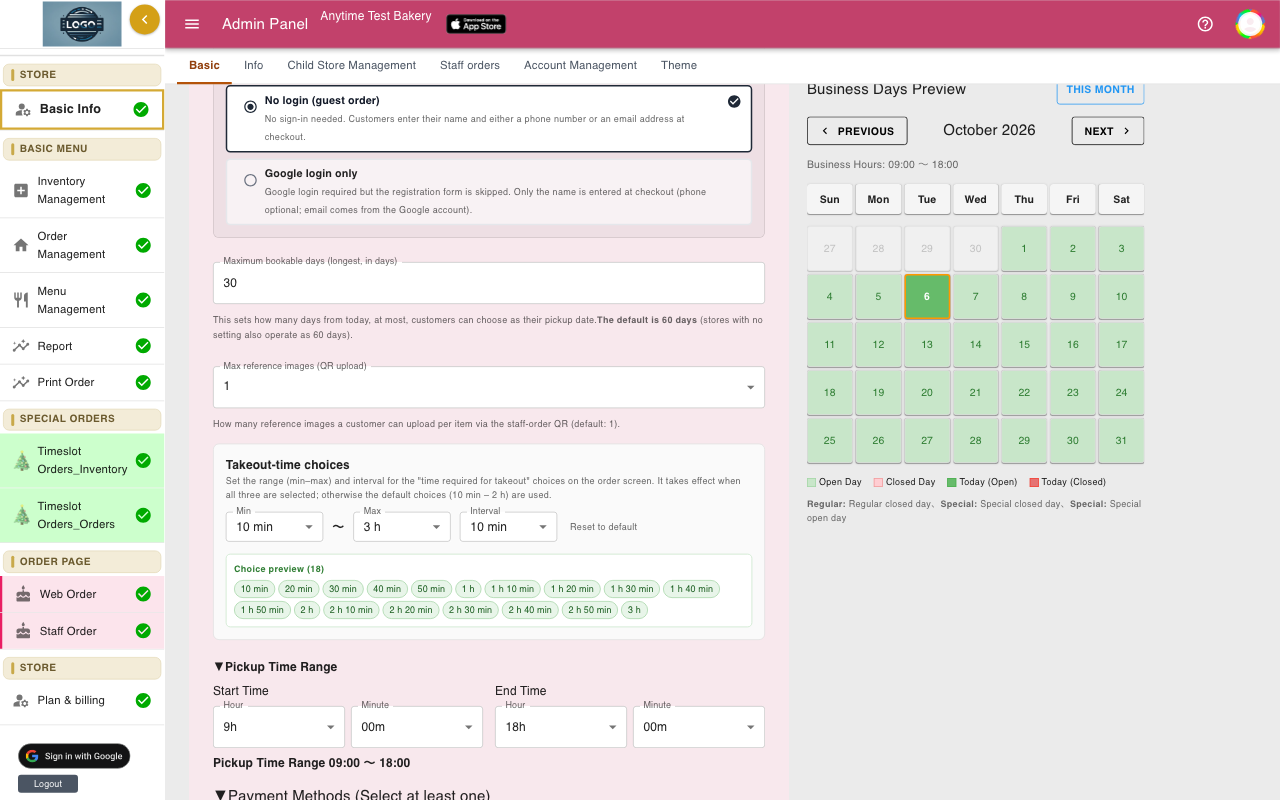
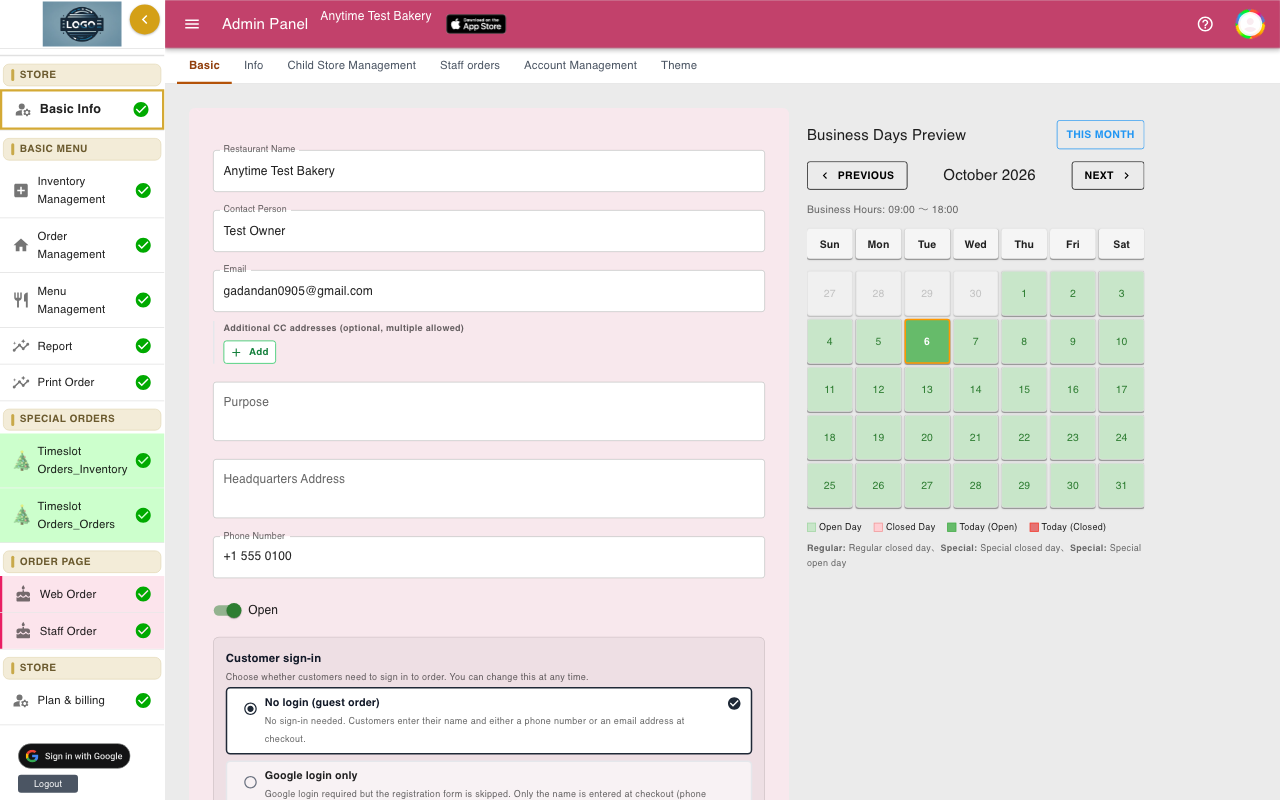
In Basic Info, find Customer sign-in. No login (guest order) is the default: customers type their name, phone number and email address at checkout.
Google login only asks customers to sign in with Google first, and fills in their email for them. Click Update after changing it.
-
Customers choose a product
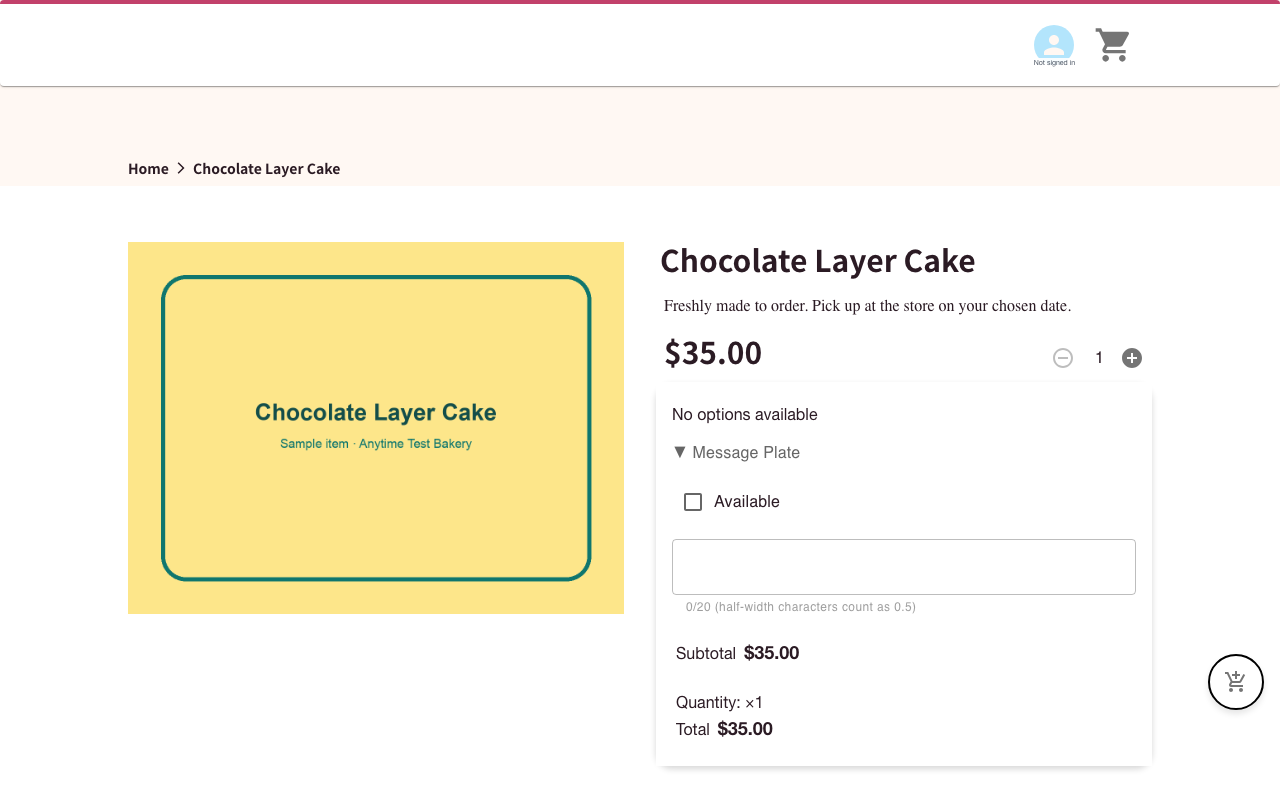
Customers tap a product to see its photos, description and price. They pick a quantity and any options, write a plate message if you allow it, and tap Add to Cart.
A window shows the cart with Select More and Proceed to Checkout.
-
Customers check out
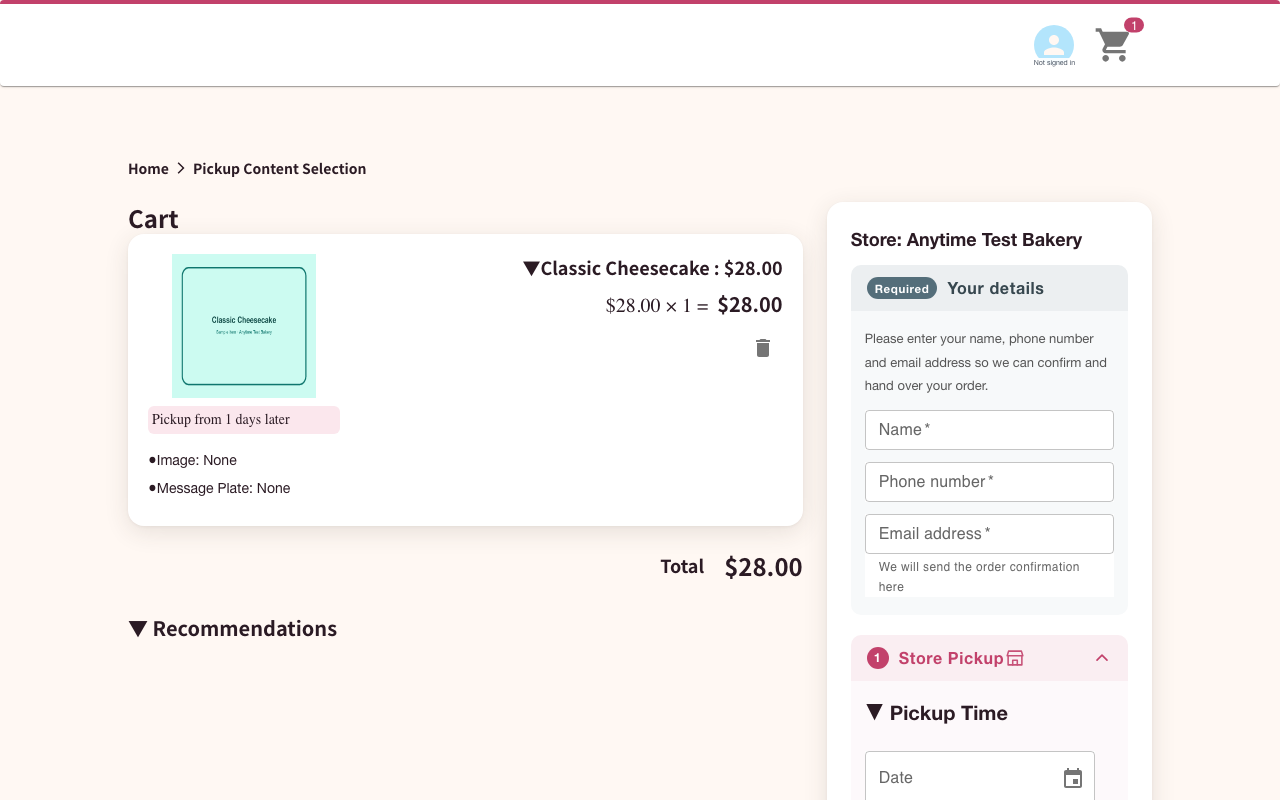
At checkout customers fill in Your details, then choose a pickup date and time under Store Pickup, and how long it takes them to get home. Closed days and days too soon for the products in the cart are greyed out.
The total is shown with Tax is calculated at pickup. There is no online payment.
-
Customers confirm the order
Customers tap Pay at Store and answer Yes to Confirm order?. The system checks stock, then shows Order completed! and returns to your order page.
The customer gets a confirmation email with the pickup time, items, total and your contact details. You get a copy, and the order appears in Order Management at once.
-
Keep the Info box up to date
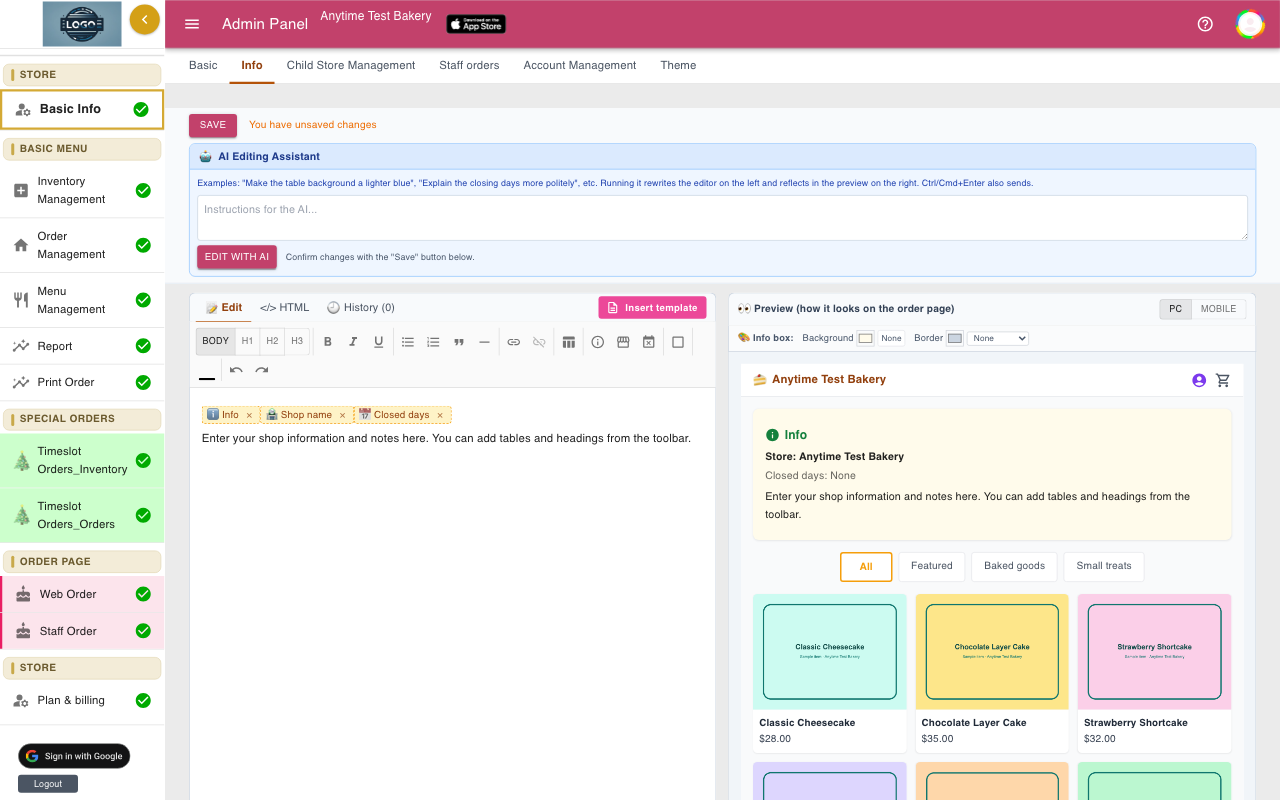
The box at the top of your order page comes from the Info tab in Basic Info. Use it for holiday notices, pickup instructions and anything customers ask often.
See Shop info for how to edit it.
-
Pause online orders when you need to
To stop taking online orders for a while, turn off the Open switch on the Basic tab of Basic Info and click Update. Your order page stays online but shows This shop is not accepting online orders at the moment.
Turn it back on and click Update to reopen. Your Staff Order screen keeps working while online orders are paused.
Tips
- Place a test order yourself after every big change, then delete it in Order Management.
- Customers cannot cancel or change an order online. Put your phone number in the Info box so they know how to reach you.
- Guest checkout needs a phone number and an email address, so you can always contact the customer.
Questions
Can customers pay online?
No. Anytime Reservation is built for pay-at-pickup. Customers confirm the order online and pay you in the shop with whatever payment methods you already accept.
Is tax added to the prices?
No. Prices are shown as you enter them and the order page says Tax is calculated at pickup, so add any sales tax when the customer pays.
Can customers choose delivery?
No. Every order is picked up at your shop.
Can a customer change their order?
Not online. They contact you. You can change the pickup date and time in the order details; for other changes, delete the order and enter a new one on Staff Order.
Can I try ordering without affecting my shop?
Yes. Open the demo shop at anytime-reserve.web.app/order/?rest=test-store-anytime to see the full customer experience.
Related guides
Still stuck? Email us at support-global@cakesystem.net.