Before you start
- Add your products first. See Products.
- A list of each choice and its extra charge, for example "8 inch, +$12.00".
Step by step
-
Open the Options section
In Menu Management, open the Options section at the top. Options are made once for your whole shop, then attached to the products that use them.
The Order page preview on the right shows how your options will look to customers.
-
Create an option group
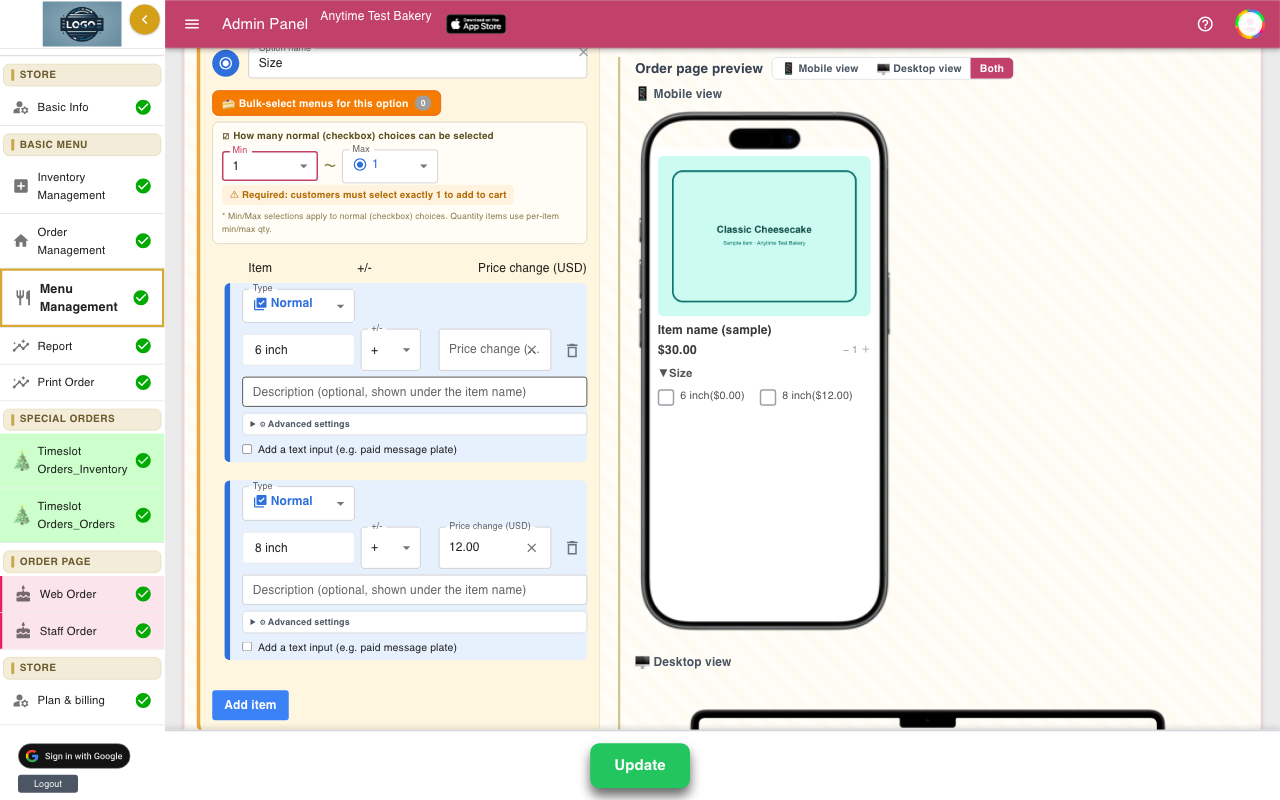
Click Add option. A new group appears with an empty choice. Type its name in Option name, for example Size, Flavor or Candles.
To delete a whole group later, click the grey ✕ in its top-right corner.
-
Set how many choices customers pick
Under How many normal (checkbox) choices can be selected, choose Min and Max. The sentence below tells you the rule in plain words.
For a size, set Min 1 and Max 1: Required: customers must select exactly 1 to add to cart. For optional extras, leave Min on None (optional).
-
Add the choices and their prices
Type the first choice in Item name. Click Add item for each extra choice. In Price change (USD), enter the extra charge in dollars, for example 12.00, or leave it empty for no charge. Set +/- to - for a discount.
Use Description (optional, shown under the item name) for a short note customers see under the choice. The bin icon removes a choice straight away.
-
Sell countable extras like candles
For something customers buy several of, change the choice's Type from Normal to Qty. Enter a Unit price (USD), and optionally Min qty (blank = optional) and Max qty (blank = unlimited).
Customers then see − and + buttons and can choose, for example, 3 candles at $0.50 each.
-
Attach the option to products
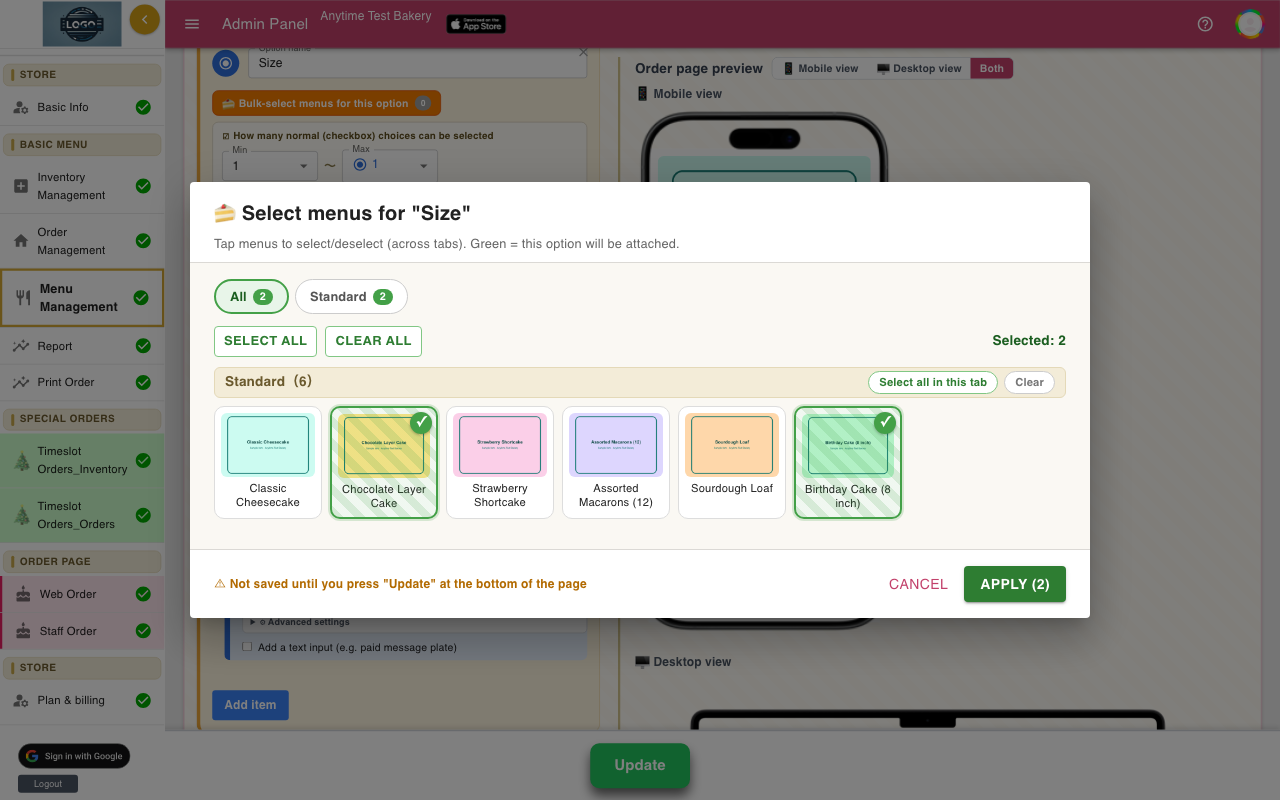
Click Bulk-select menus for this option. Tap each product that should offer it; selected products turn green. Click Apply.
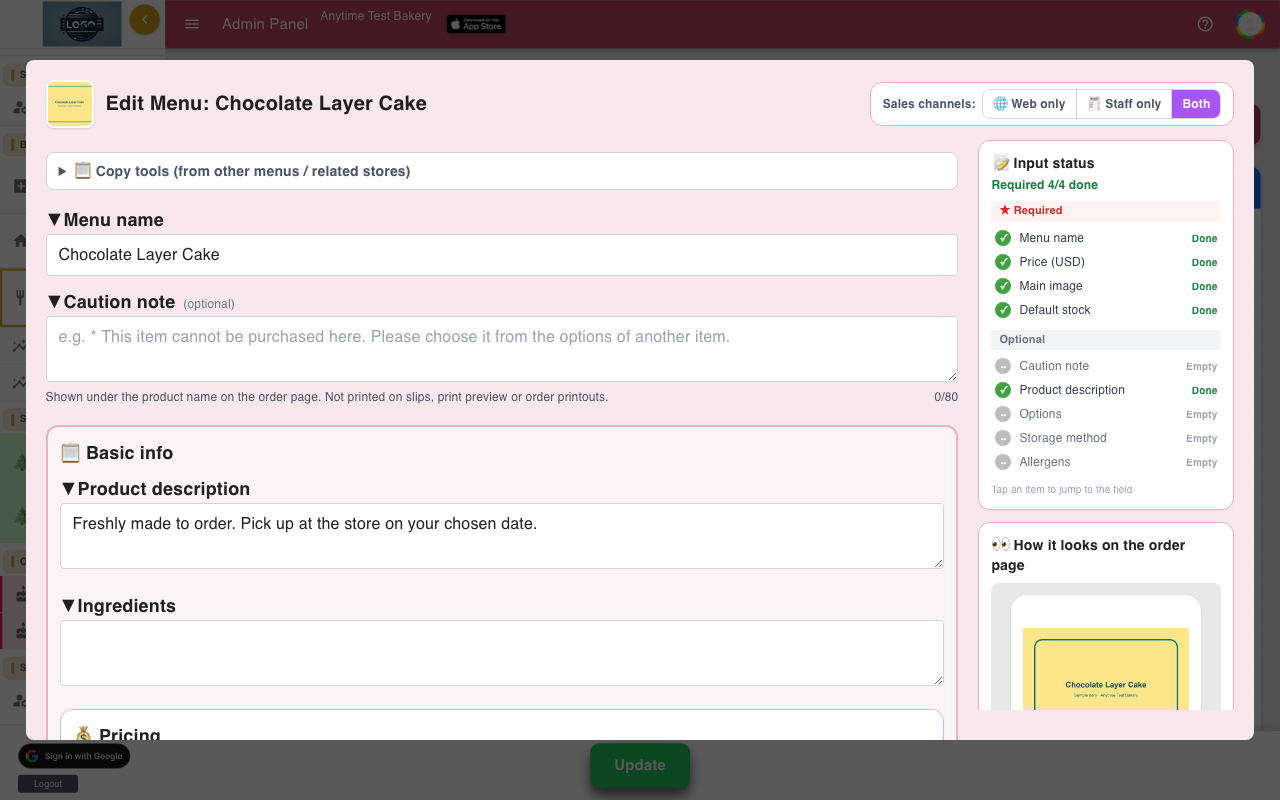
This attaches every choice in the group. You can also open a product and tick choices under Options in the product window.
-
Turn on message plates
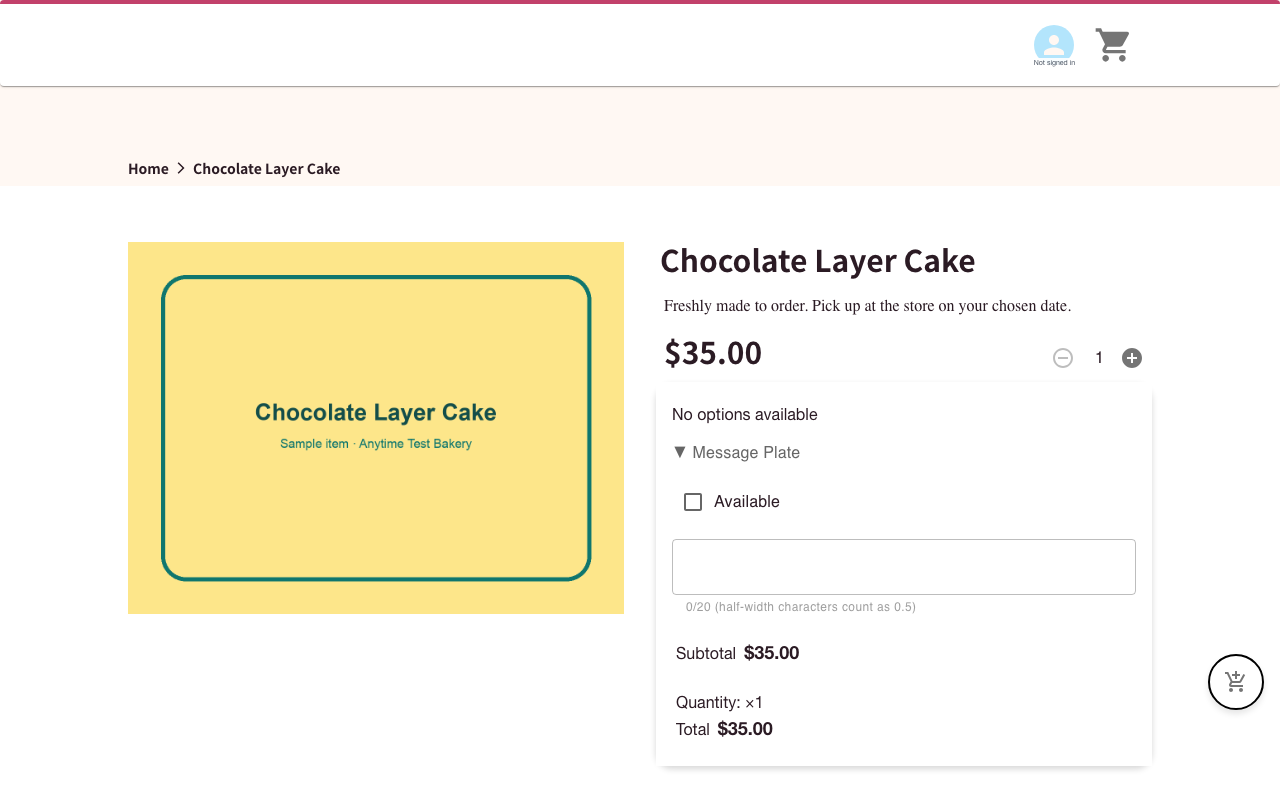
For a free message plate, open the product and turn on Allow message plate selection, then click Save. Customers tick Available under Message Plate and type their message.
To charge for a plate, make a choice with a price, open its Advanced settings and tick Message plate. The message box then appears only when that choice is picked.
-
Save with Update
Click the green Update at the bottom of the page. You will see Options updated. and Menu updated.
If a group has two choices with the same name, the save stops and lists them. Rename one and click Update again.
Tips
- Keep choice names short, like "8 inch" or "Chocolate". Put longer notes in the description; descriptions are not printed on slips.
- Plate messages allow about 40 English letters by default. Customers see a counter while they type.
- If you make a group where customers pick exactly one (Max 1), attach it with Bulk-select menus for this option. The product window only lets you tick one choice from such a group.
- Open your order page after saving and add the product to your cart to check the total.
Questions
How are option prices added up?
The product price plus each chosen extra, times the quantity. For example, a $28.00 cake in 8 inch (+$12.00) with 2 candles at $0.50 is $41.00 for one.
What does a customer see if they skip a required option?
When they tap Add to Cart, a message tells them which option still needs a choice, for example: Please select at least 1 for "Size".
Can I make one choice sold out?
Not on its own. Remove the choice, or remove the group from that product, and add it back later.
Where does the message plate text show up for me?
In the order list (after the 💬 icon), on the order details, and on printed slips under Message plate.
What is the purple Quantity option box?
It is an older way to add countable extras. Use the Qty type inside a normal option group instead.
Related guides
Still stuck? Email us at support-global@cakesystem.net.